Hello beautiful peoples!

First, a quick explanation for those who have no idea what IPv6 even is and just want their Linux to stop whining. Every device on the internet needs an address, a bit like a street address for your computer. The old system is called IPv4 and looks like 192.168.1.10. It has been around for ages and there are simply not enough of those addresses for every phone, laptop, toaster and fridge on the planet. IPv6 is the newer system that was created to fix that. Its addresses are much longer and look like your cat walked over a keyboard, something like 2001:db8::1.
In theory both systems should live happily together. In practice, sometimes they do not. Your computer may think IPv6 works, try it first, wait for a response that never comes, and only after a long timeout fall back to good old IPv4. The result? Slow downloads, apt update hanging on “Connected to…” forever, and random timeouts for no obvious reason. This usually happens when your router or your internet provider has IPv6 half configured, or when a server on the other side does not answer properly. In my case it was exactly that, and apt was the most annoying victim.
So why would anyone want to disable IPv6? Because it is a quick way to check if IPv6 is the troublemaker. If your network starts behaving after you turn it off, you have your answer. I am not saying IPv6 is bad, it is the future and all that. I am saying that when something breaks and you have a deadline, the simplest fix wins.
There is one catch with WSL2 however. Settings in file like sysctl.conf, which you would normally use on a regular Linux, do not do the job here. The right way is to tell the WSL2 kernel itself, from the Windows side, using the .wslconfig file. This file is global, so it affects every Linux distro you run in WSL2. And now the 2 lines from the title: the section header [wsl2] and kernelCommandLine=ipv6.disable=1.
Below you will find a PowerShell script that does all of this for you. You run it as a normal user, not as admin, because the file lives in your own profile folder. The script first checks if %USERPROFILE%.wslconfig already exists. If it does, the script does not touch it, stops right away and tells you about it. I did that on purpose, because you may already have settings there, like memory limits, and I do not want you to lose them. In that case you need to add the line by hand under your existing [wsl2] section. One more thing: if you already have a kernelCommandLine entry, merge the values into one line instead of adding a second one.
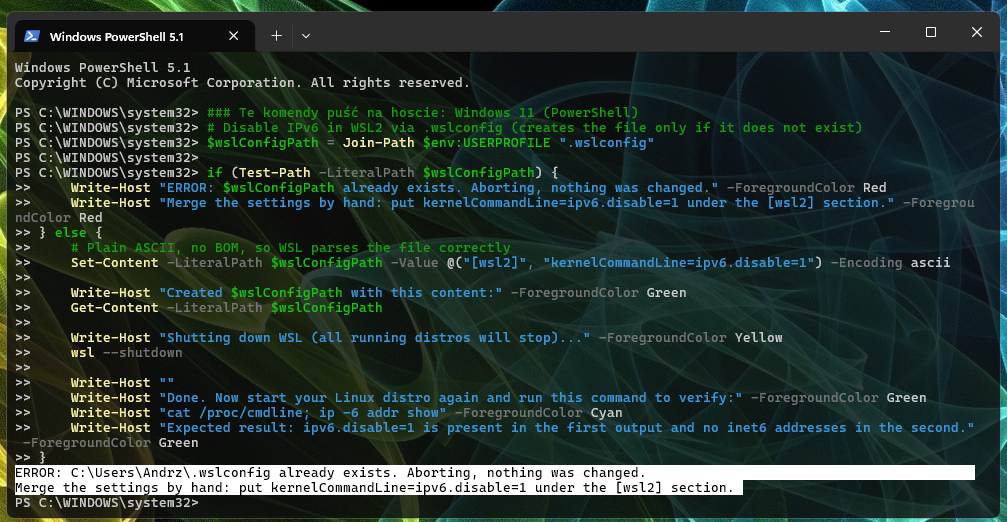
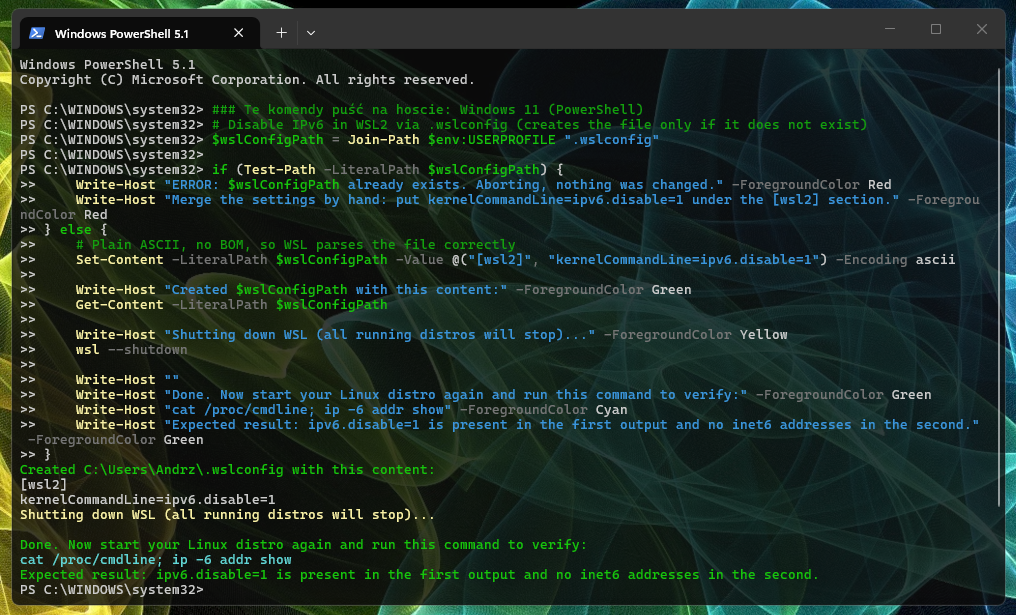
If the script does not find the config, it creates the file and puts the two lines in it. Then it runs wsl --shutdown. Be careful here, because this stops all running Linux distros, so save your work first. Next time you start your distro, WSL2 works as usual, only without IPv6.
### Te komendy puść na hoscie: Windows 11 (PowerShell)
# Disable IPv6 in WSL2 via .wslconfig (creates the file only if it does not exist)
$wslConfigPath = Join-Path $env:USERPROFILE ".wslconfig"

if (Test-Path -LiteralPath $wslConfigPath) {
    Write-Host "ERROR: $wslConfigPath already exists. Aborting, nothing was changed." -ForegroundColor Red
    Write-Host "Merge the settings by hand: put kernelCommandLine=ipv6.disable=1 under the [wsl2] section." -ForegroundColor Red
} else {
    # Plain ASCII, no BOM, so WSL parses the file correctly
    Set-Content -LiteralPath $wslConfigPath -Value @("[wsl2]", "kernelCommandLine=ipv6.disable=1") -Encoding ascii

    Write-Host "Created $wslConfigPath with this content:" -ForegroundColor Green
    Get-Content -LiteralPath $wslConfigPath

    Write-Host "Shutting down WSL (all running distros will stop)..." -ForegroundColor Yellow
    wsl --shutdown

    Write-Host ""
    Write-Host "Done. Now start your Linux distro again and run this command to verify:" -ForegroundColor Green
    Write-Host "cat /proc/cmdline; ip -6 addr show" -ForegroundColor Cyan
    Write-Host "Expected result: ipv6.disable=1 is present in the first output and no inet6 addresses in the second." -ForegroundColor Green
}
The script also tells you how to check if Linux really accepted the change. Start your distro again and run this command inside it:
### Run these commands on host: your WSL2 Linux distro
# Show kernel parameters and list IPv6 addresses
cat /proc/cmdline; ip -6 addr show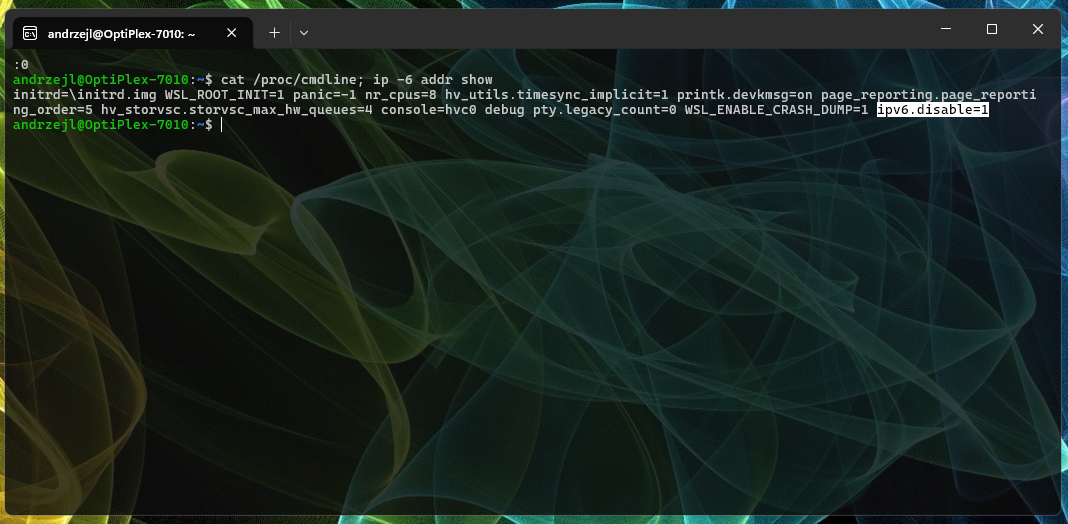
The first part shows the kernel parameters and you should see ipv6.disable=1 at the very end. The second part lists IPv6 addresses and, if everything went fine, it prints nothing at all. That is exactly what you want.
I hope this helps!
Thank you for your attention to this matter.
Catch you on the flip side,
AndrzejL