Hello beautiful peoples!

“Guide” is an overstatement. I’ll tell you what I fucked up and how I fixed it (for my own records and future reference), and you can try to fix your own fuckup the same way, or something similar. Mkay? Too late – you already agreed, and it’s legally binding.
This post is sponsored by my own stupidity, the number Q, and the letter 9…
It all began when I was creating a VM in Proxmox (quite a while back). It all went well at first. I had Debian 12 Bookworm installed and configured, along with the service this particular machine was going to run on my network. Then, after some tests, the application crashed. I dug into the problem and, after a while, figured out I needed more space in /tmp. I thought about it for a sec and decided that, instead of restarting the project and increasing the size of the drive during the initial VM creation steps or adding a second “disk” to the VM, I wanted to find out if I could just increase the size of the existing VM’s drive. My plan was to create a new ext4 partition in the extra disk space and add an entry to /etc/fstab to mount it at /tmp. So no, I wasn’t expecting a bigger virtual disk to magically give me more space in /tmp… There was a plan. Whether it was a good one is another matter.
Turns out resizing the disk in Proxmox is incredibly simple thing to do… Go to the hardware list for this particular VM, click on its hard drive, and choose Disk Action > Resize. (I stopped the VM first. Growing a disk of a running VM usually works too, but shrinking, as you will see below, needs the VM shut down.)
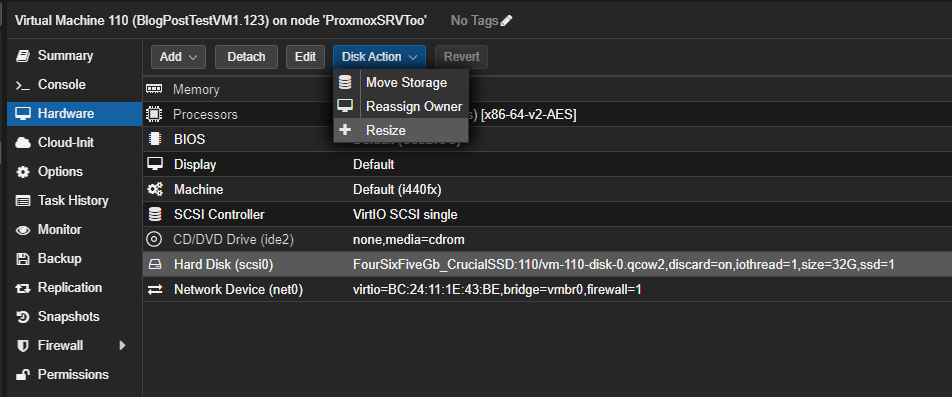
Then type in how much space you want to add to the disk and click the “Resize disk” button.
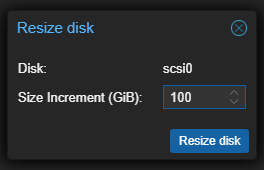
Now, if you’re not a dumbass like me, you’ve just increased the size of the drive by the desired amount…
Instead of the 10G increase I originally planned, I added 100G to the size of the drive… Great! 🙄

I also found out that there’s no Shrink Disk option, and that if you type -90G into the Resize window, Proxmox laughs at you… 😦 Sacre bleu… I hate making mistakes and then wasting time correcting them…
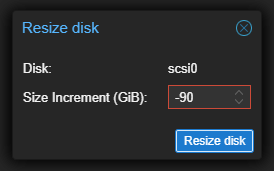
You can click the “Resize disk” button as many times as you want – it just won’t work…
So I decided to try and shrink the disk “manually”…
Now, before I tell you how I shrank my qcow2 drive, let me preface this by saying that I hadn’t created any new partitions or expanded any existing ones into the extra space at this stage. I noticed my mistake right after I clicked the “Resize disk” button.
Now… I only mentioned the word qcow2 about 7 billion times so far but the AI overlord says that I have to treat you like an idiot and make sure you understand that this “Guide” only works with fucking QCOW2 files… So read this and stop being such a dumb human… Geez… “This post covers VM disks stored as qcow2 files on file-based storage, like the directory storage in my example. If your disk lives on LVM-thin, ZFS or another storage type, the tools and paths are different and this procedure does not apply. I only tested it on a file-based qcow2 disk.“
If you’ve already created or expanded partitions into that space, you’ll need to shrink them and their filesystems first, where supported, leaving enough unallocated space at the end of the drive to remove the amount you want. How you do this depends on your filesystem and disk layout. Make sure you have a backup before proceeding. I take no responsibility for your mistakes.
A few things to note before we proceed:
▪ The VM ID (110 in my case)
▪ The target disk size (42G in my case)
▪ The path to the drive’s .qcow2 file (/mnt/pve/FourSixFiveGb_CrucialSSD/images/110/vm-110-disk-0.qcow2 in my case)
▪ The location of the VM’s config file (/etc/pve/qemu-server/110.conf in my case).
Caution: Shut down the VM before proceeding, and make sure all partitions and their filesystems fit within the target disk size. It’s not just about how much space your files take up: no partition should extend into the space you’re about to remove.
My disk is currently 132G, and I want to remove the extra 90G, bringing it down to 42G. That’s the value I’ll use in the command below: the final size I want the disk to be, not the amount I want to remove.
So here we go. Open a terminal on the Proxmox host, either by selecting the host in the web GUI and clicking Shell, or by connecting to it over SSH. Make sure you’re on the Proxmox host, not inside the VM.
If you’re not already root, run su - (yes, with the hyphen) and enter the root password when prompted. It starts a root login shell with the appropriate environment. If you’re already root, skip this step.
With the VM shut down and your backup ready, work through the commands below one at a time. These are my paths and VM ID, so replace them with yours (duh!).
▪ Shrink the disk image to its target size.
/usr/bin/qemu-img resize --shrink -f qcow2 /mnt/pve/FourSixFiveGb_CrucialSSD/images/110/vm-110-disk-0.qcow2 42G▪ Check the image’s virtual size.
/usr/bin/qemu-img info /mnt/pve/FourSixFiveGb_CrucialSSD/images/110/vm-110-disk-0.qcow2 | grep virtual▪ Check the disk size currently recorded in the VM’s config file.
grep qcow2 /etc/pve/qemu-server/110.conf▪ Then open /etc/pve/qemu-server/110.conf in your editor, find the entry for this particular disk, and change size=132G to size=42G. Leave the other settings alone. Save the file and exit the editor.
nano /etc/pve/qemu-server/110.confEdit: I was told by my AI Overlord who checks my posts for idiotisms.. 🤪 that updating /etc/pve/qemu-server/110.conf manually works, but the cleaner way is to let Proxmox pick up the new size itself. I tested it and it works:
qm rescan --vmid 110VM 110 (scsi0): size of disk 'FourSixFiveGb_CrucialSSD:110/vm-110-disk-0.qcow2' updated from 132G to 42G
▪ Run the same grep again to confirm it now shows size=42G.
grep qcow2 /etc/pve/qemu-server/110.conf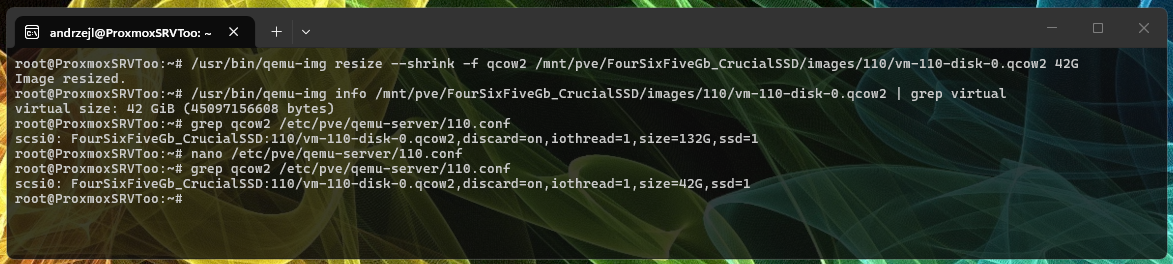
The image check should show virtual size: 42 GiB, and the final config check should show size=42G for this disk, just as in my example.
Now go back to the Proxmox web GUI, select the VM, and open its Hardware section. The disk should show the updated size of 42G. Refresh the view if it still displays the old value.
Start your VM and immediately start praying 😁😉. If you did everything correctly (and you’re not just kidding yourself), you should now have a working VM with the drive size of your dreams 😊👍…

I hope this helps!
Catch you on the flip side,
AndrzejL