Hello beautiful peoples!

If you lived in a cave for the past 30 years and somehow never heard of The Elder Scrolls, here is a bit of info. It’s a long running series of open world fantasy RPGs, mostly made by Bethesda Game Studios. You get a huge map, a character you build yourself, and almost total freedom to ignore the main quest for the next 300 hours. Morrowind, Oblivion and Skyrim all picked up Game of the Year awards, so yeah, people kinda like them.
Skyrim is the fifth main game in the series. It came out on 11.11.2011 and it’s set in the cold, northern province of Skyrim, roughly 200 years after Oblivion. I will not spoil the storyline for you. Over the years the game got three official add-ons: Dawnguard, Hearthfire and Dragonborn. In 2016 it also got a 64 bit Special Edition with all three add-ons included, and in 2021 the Anniversary Edition, which is the version I’m using today. It bundles the Special Edition with Creation Club content released up to that date. It also got ported to basically everything with a screen and a power plug.
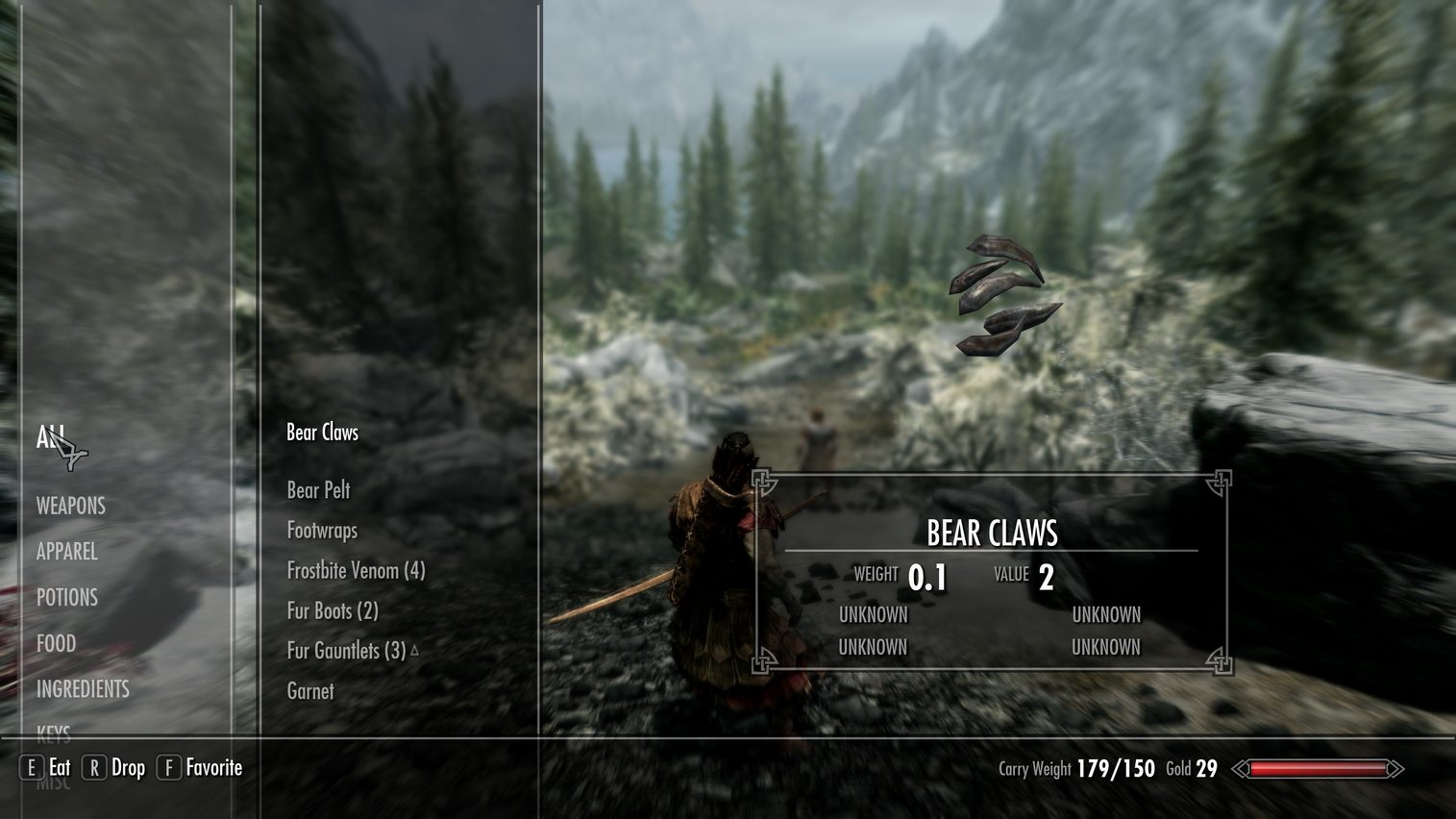
So 15 years of updates, remasters, DLCs. Most of them paid for separately (unlike CD PROJEKT RED – a company which gave away Witcher 3 expansions in the size of a full game and a Remastered edition FOR FREE). And then there’s the inventory menu. You spend half of your time in it, because you pick up everything that isn’t nailed down, and then also the nails. I don’t know why the original menu is so bad… Some claim it is built mainly with consoles in mind. It’s big, it’s clunky, it has no real sorting, no proper search, and scrolling through hundreds of items feels like punishment for hoarding cheese wheels. After 15 years of updates, DLCs and paid remasters it’s still the same menu. Bethesda sold us the game several times, but the menu stayed as it was.
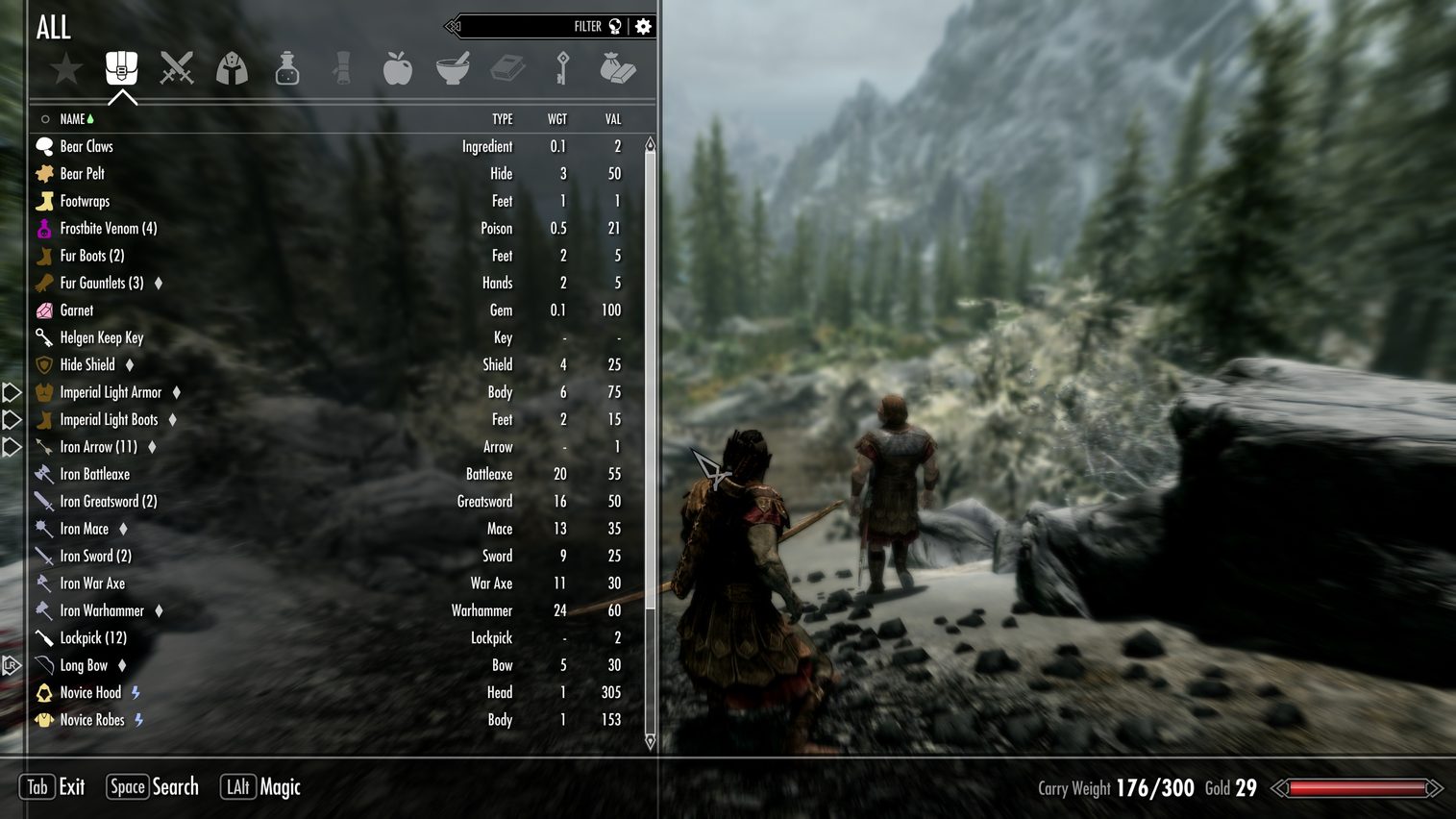
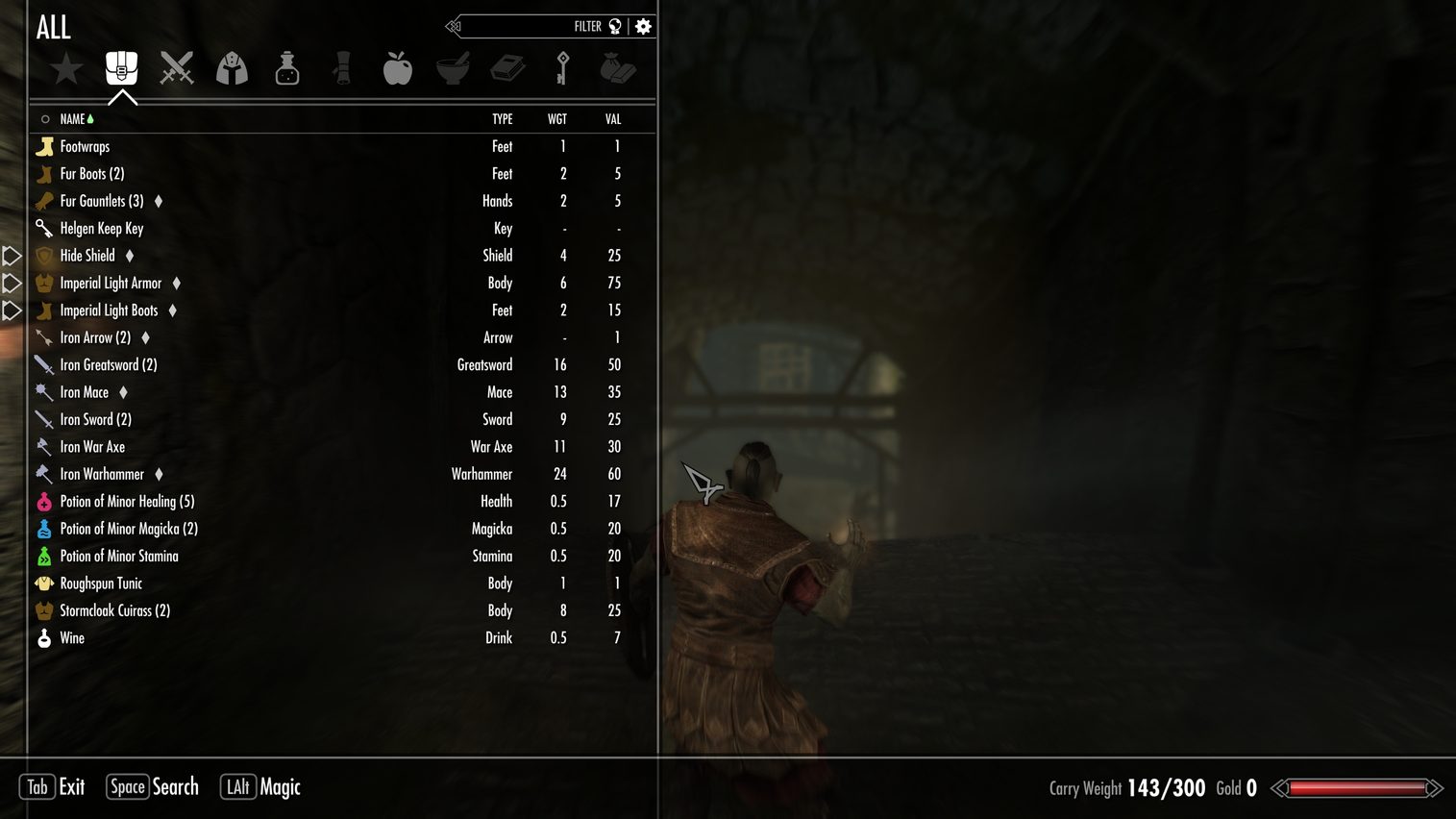
That’s where SkyUI comes in. SkyUI is a free mod that replaces the stock interface with something that works on a PC. It gives you a cleaner layout, sortable columns, filtering by category and a search box, so finding that one potion of whatever stops being an archaeological dig. It’s one of the first mods most people install, and it depends on SKSE64, the Skyrim Script Extender. According to the Modding Wiki guide, SkyUI 5.2 or newer doesn’t depend directly on the game version, only on a correctly installed, working SKSE64, and most SkyUI problems come from a broken SKSE64 install.
Today we’re doing it “the hard way“. No Vortex, no Mod Organizer 2, no fancy bullshit. We install everything manually, by hand, like proper adults who hate bloatware and don’t trust software to touch their game folder. It’s not hard, but you need to know which file goes where, so let’s go.
Let’s start by installing the game (from scratch) using Steam because that’s where I’ve purchased the game.
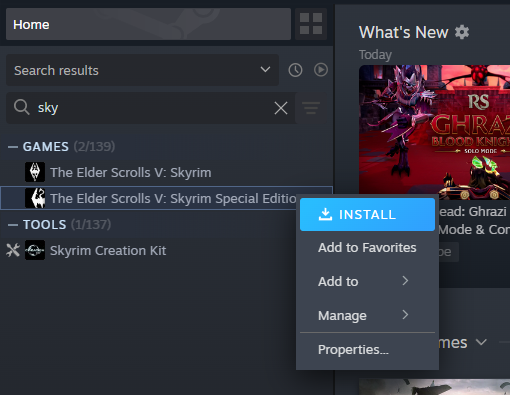
Open Steam Library and find The Elder Scrolls V: Skyrim Special Edition. Right click on the title and choose Install from the dropdown menu.
Choose the destination for the game installation folder and click Install.
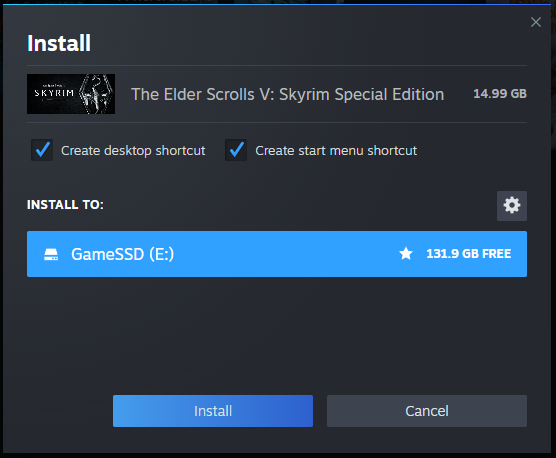
Give it a few minutes to download and extract the files.

And voila. Vanilla version of the game is installed and ready to be played.
It works OK just as expected
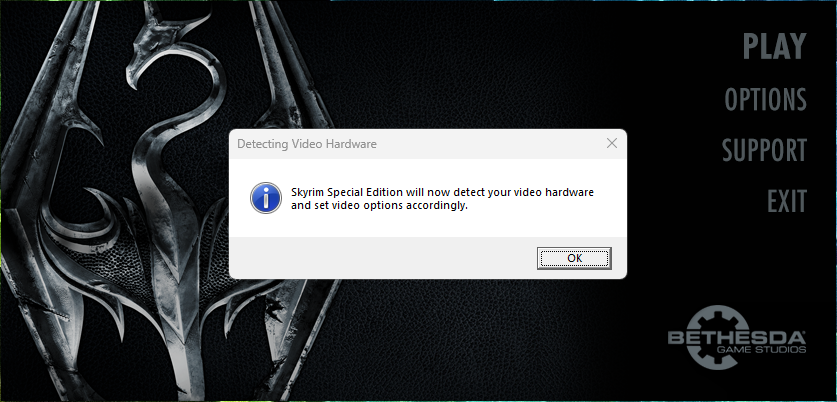
The launcher will detect your video quality settings.
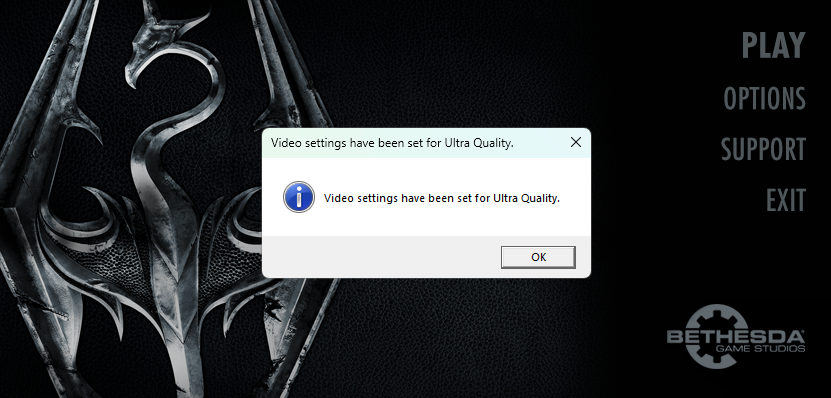
You can adjust them in the Options section.
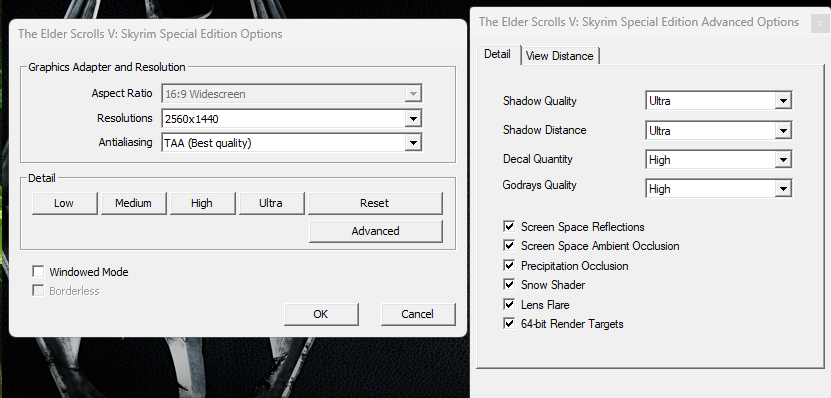
And when done faffing with the settings, start the game. You will be welcomed by a little thank you message.
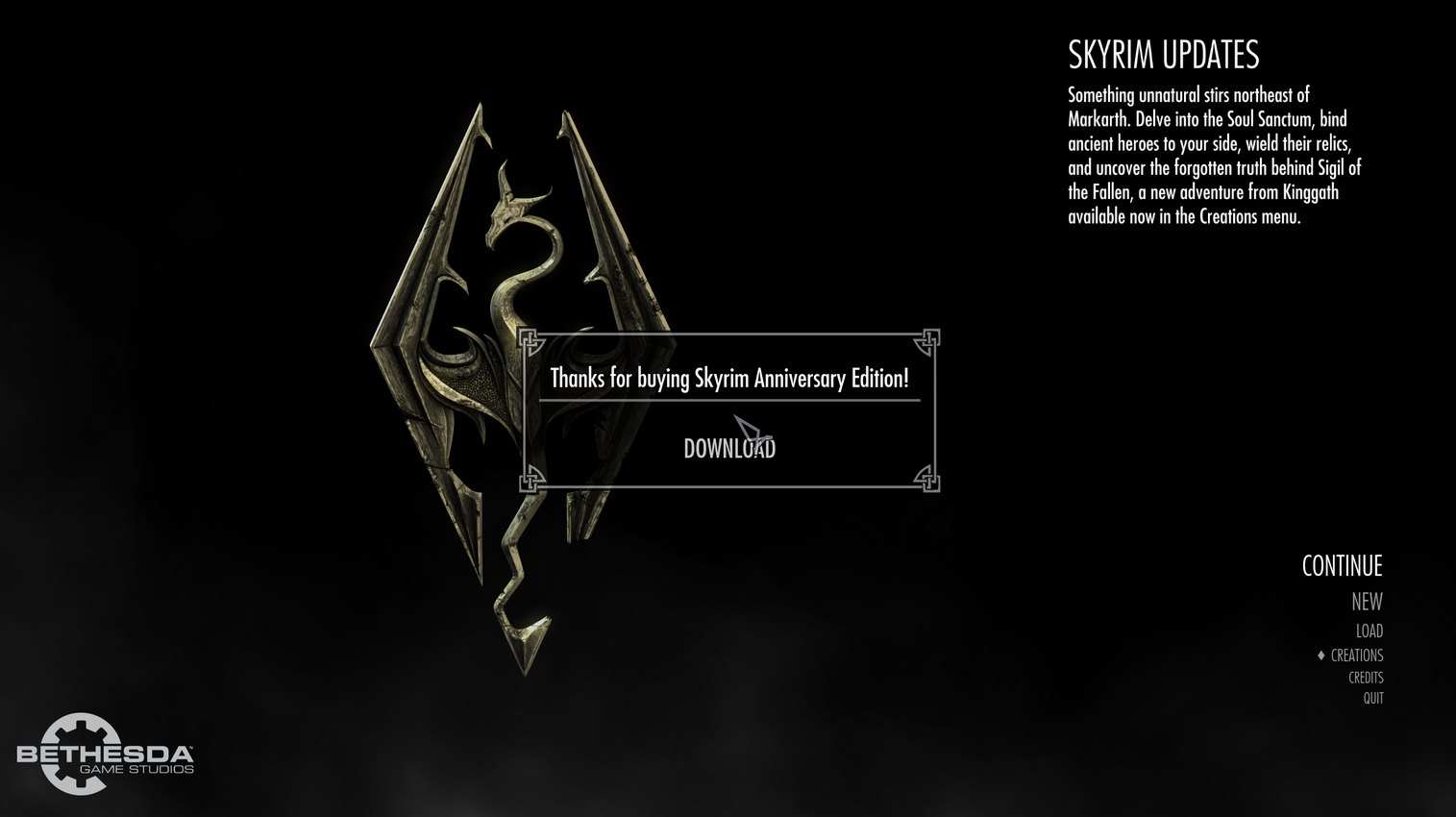
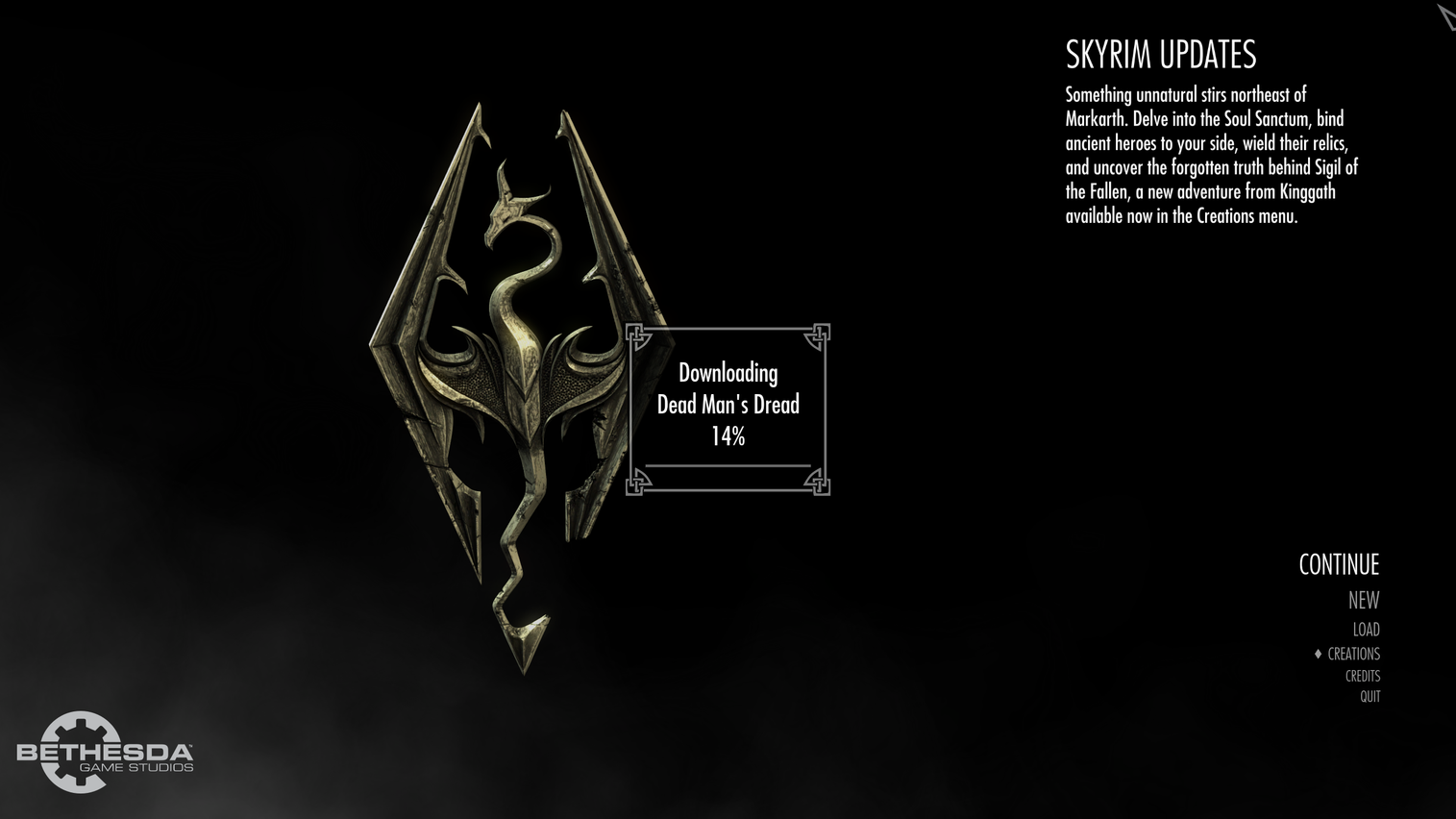
And then the additional content download begins – this will take a while.
You will be informed that the game needs to reload to add the downloaded content.
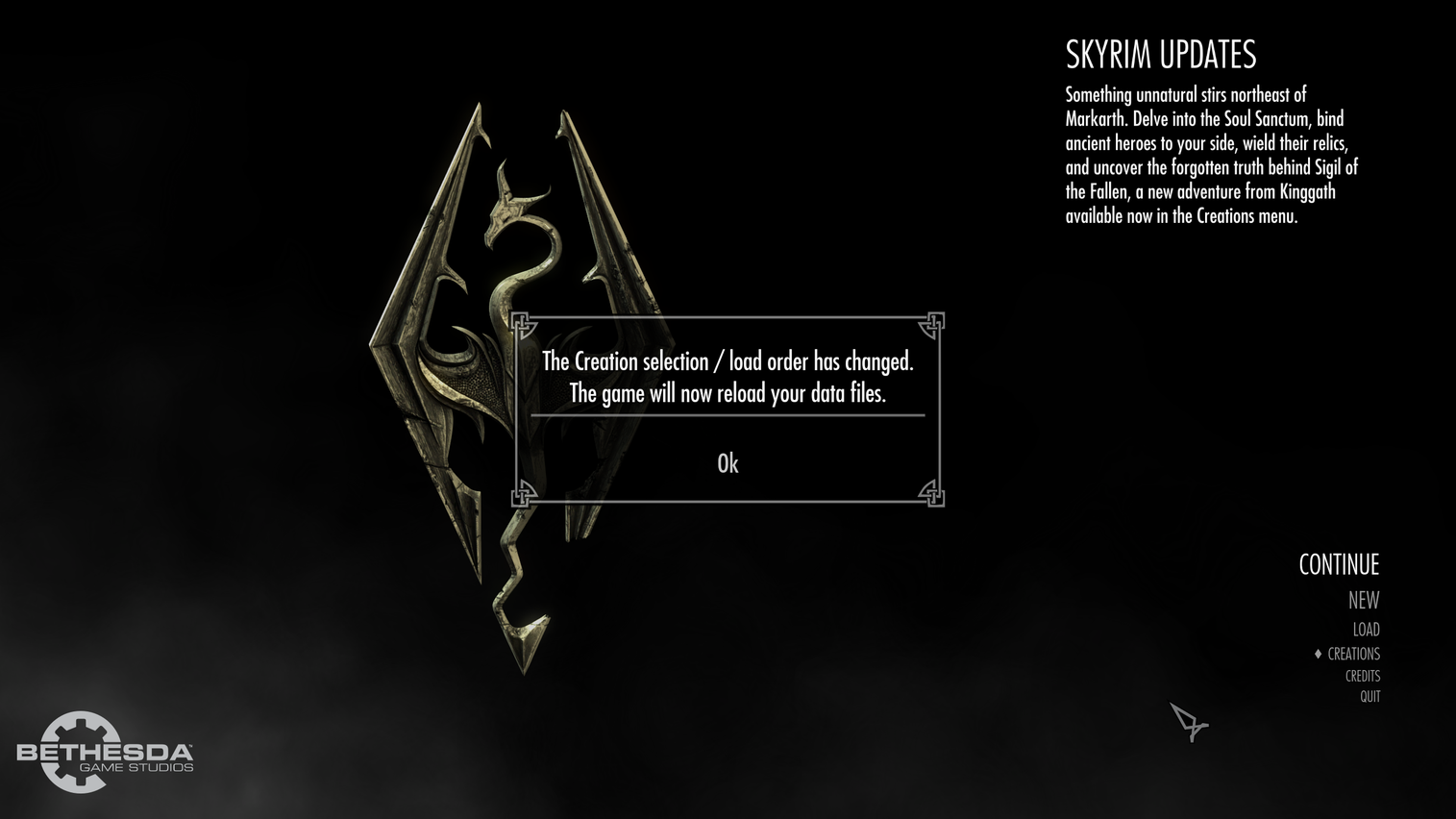
And when you will click OK the game will go into a black screen and several seconds later you’re ready to play.
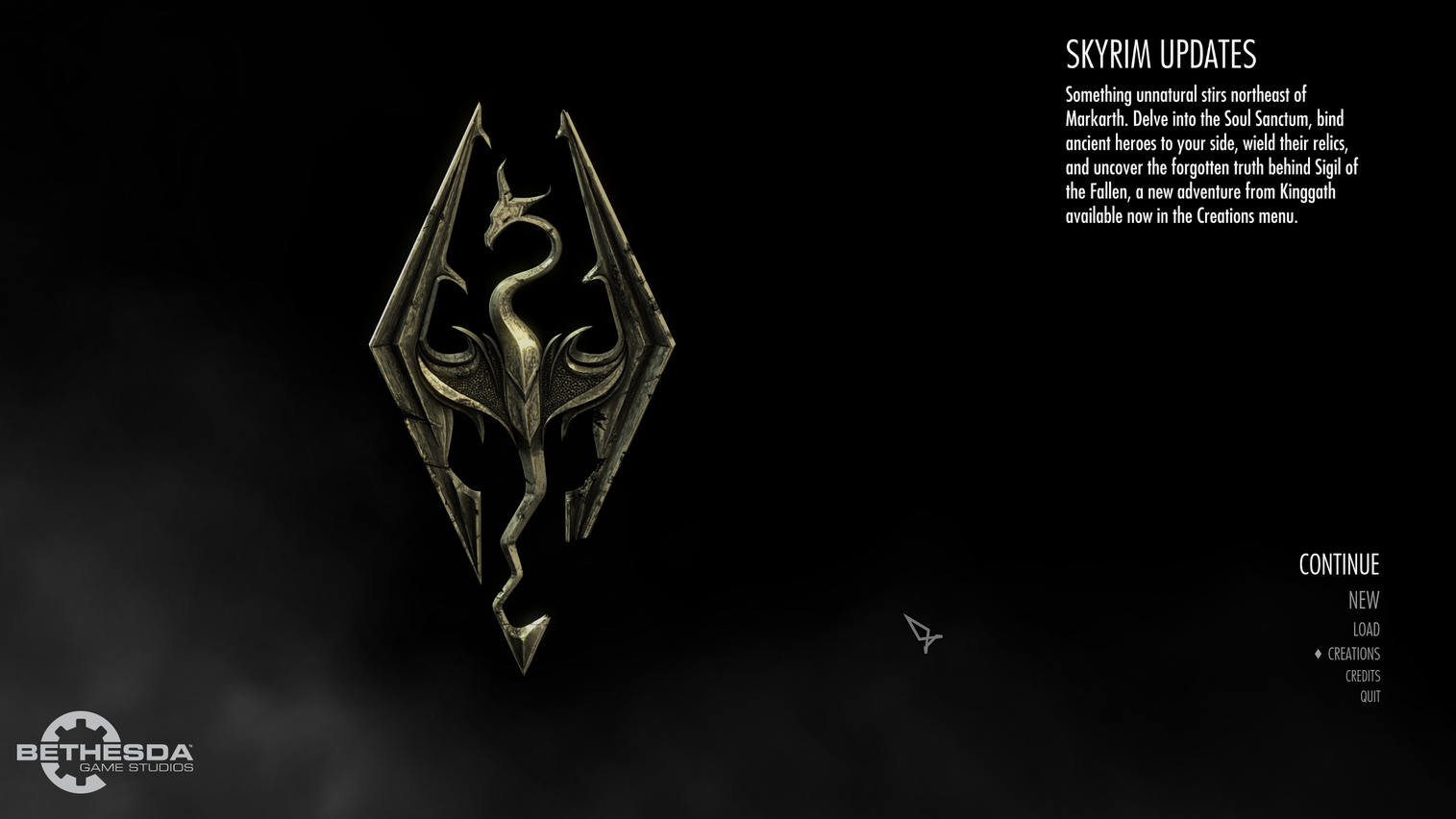
You can now quit the game and we will start installing the SkyUI.
First thing You need is Skyrim Script Extender (SKSE64). Find it here. https://skse.silverlock.org/
Figure out which version is for you. For example I need the Steam version and my game version is AE or Anniversary Edition hence I need this file: Current Anniversary Edition build 2.3.1 (game version 1.7.104): from https://www.nexusmods.com/skyrimspecialedition/mods/30379?tab=files

You need an account (its free) on Nexus Mods. Register if You don’t have one already and log in.
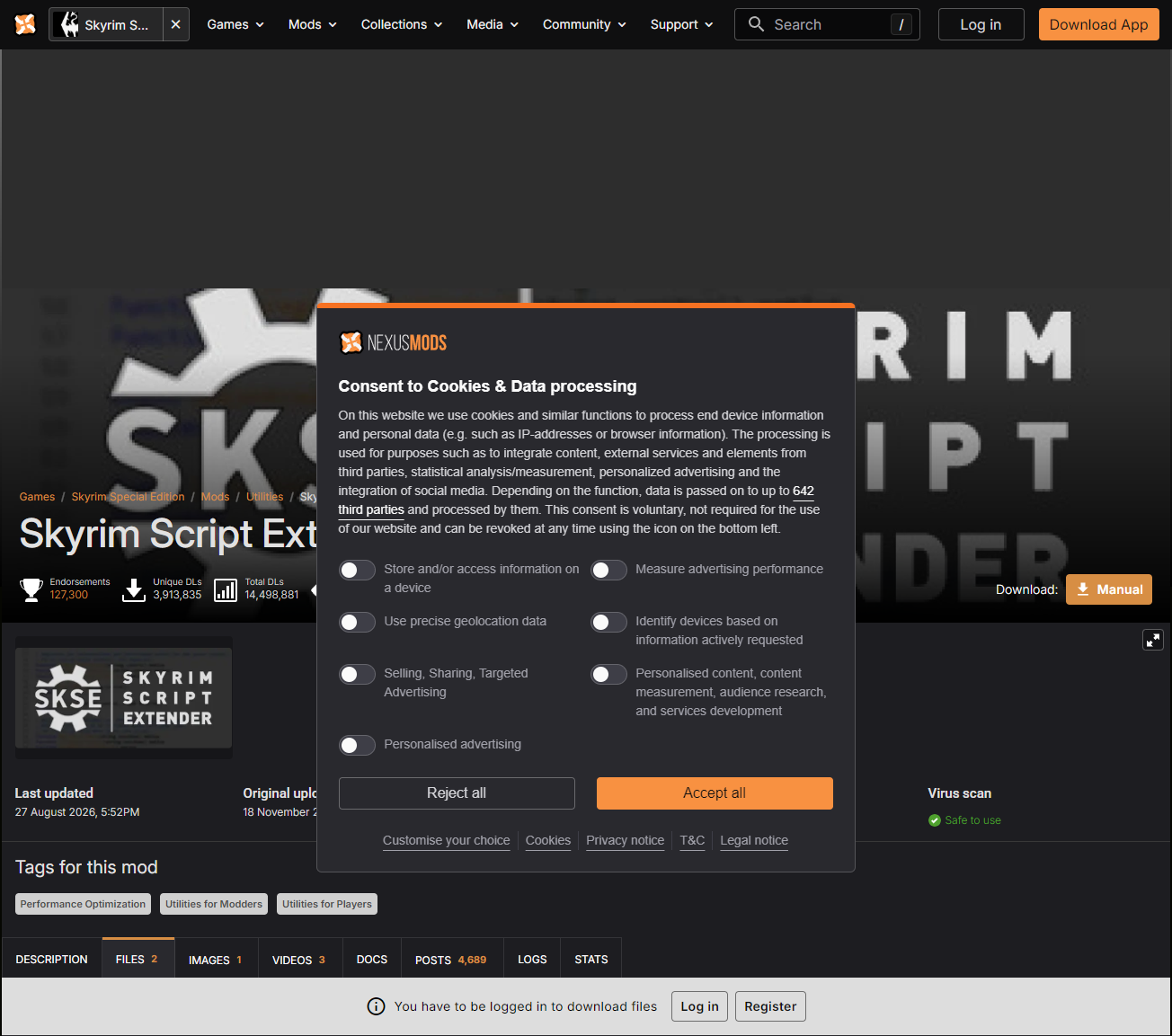
Now click the orange Manual button on the top right hand side.

Choose Slow download (because its free…)
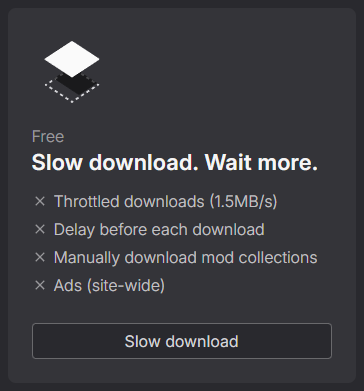
Few seconds later Your download will start,

When done – click on the Open file link under the file name.
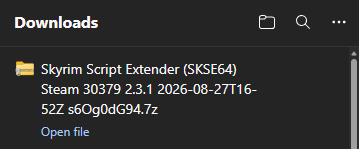
Content of the 7z archive will open in file explorer. Notice the skse64_2_03_01 folder inside. Double click on it.
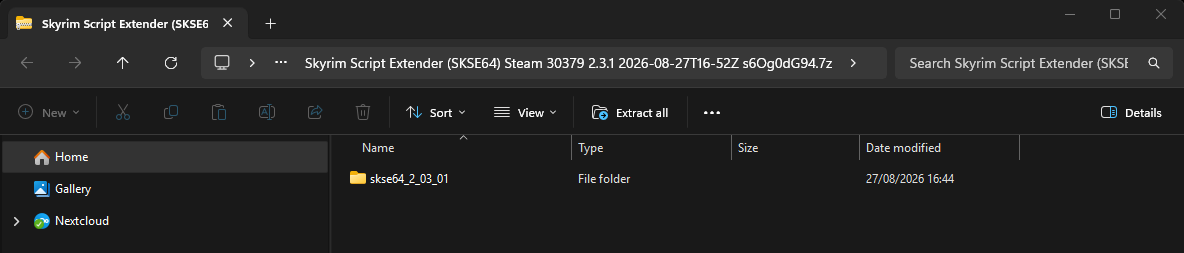
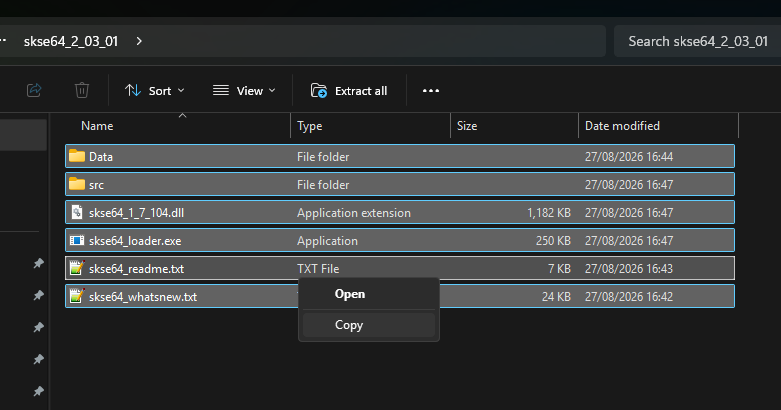
Now You should have couple of folders (data and src) and few files in front of you. Highlight and copy all of them.
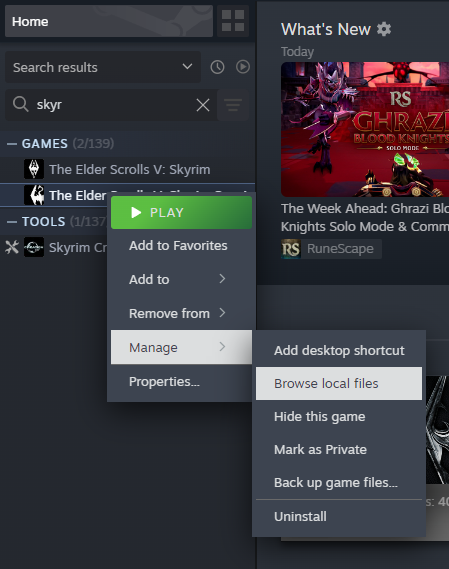
Now in Steam Library right click on The Elder Scrolls V: Skyrim Special Edition and choose Manage and then Browse local files from the menu.
This will open your game installation folder. Right click and choose paste.
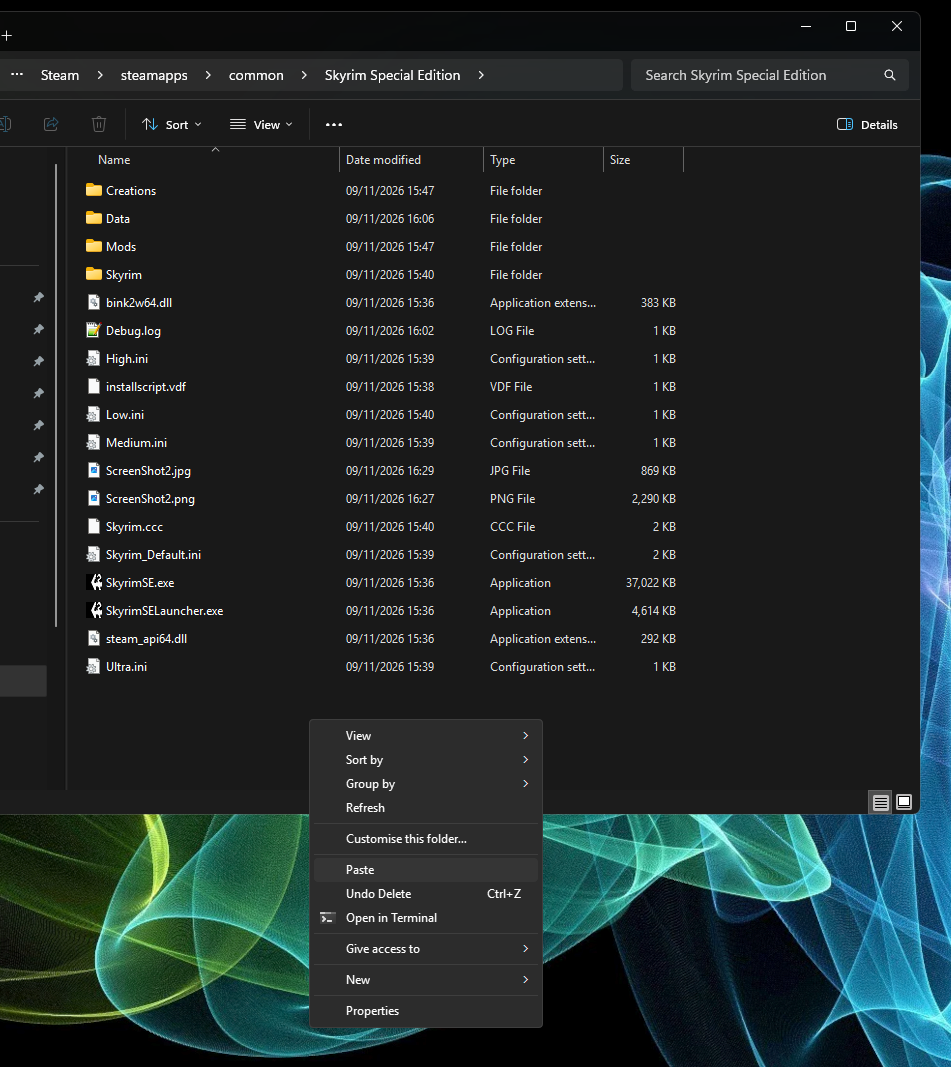
And the content of the 7z file will be pasted into your game directory.
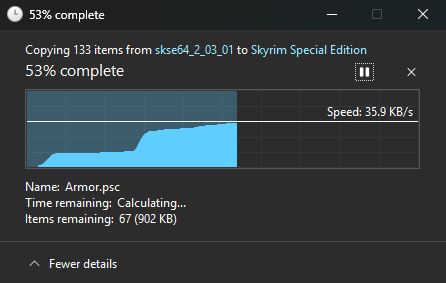
If your right-click menu looks different – you’re probably using the default (modern 🤮) Windows 11 menu. Want to change it to the classic one? Have a look here. Anyway – few seconds later Your game installation folder will look like this:
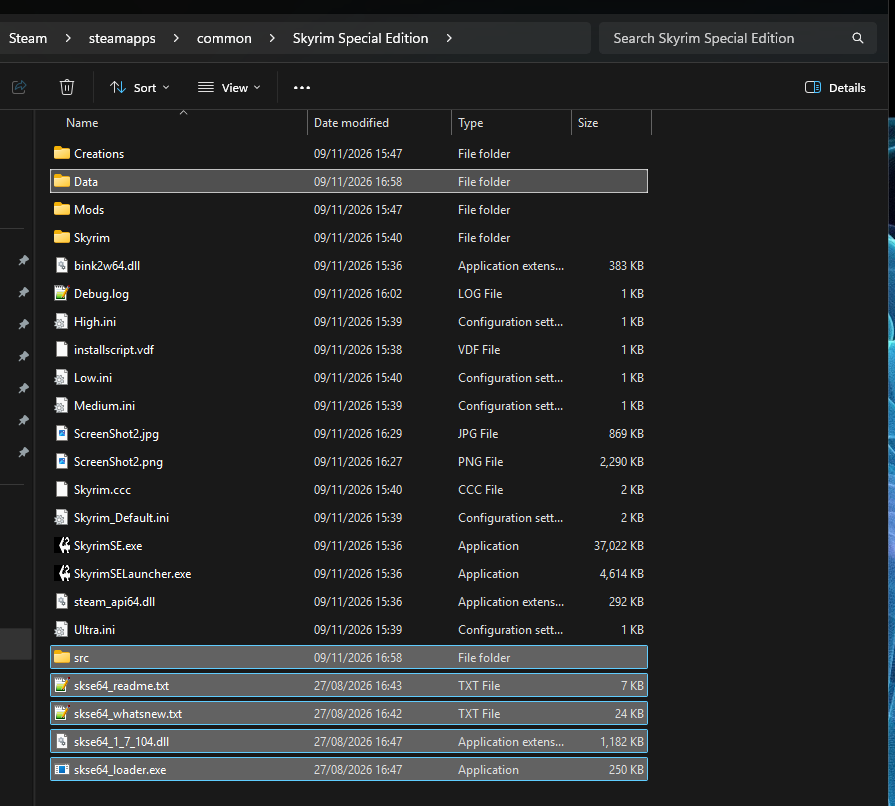
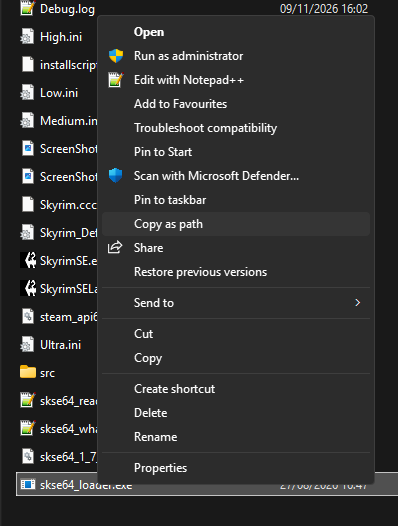
Now right click on the skse64_loader.exe and choose Copy as path from the menu. Move this window aside for now.
Let’s now add SKSE as a launcher in Steam. This is the way to start the game from now on. If you use the regular game launcher – the addons will not work.
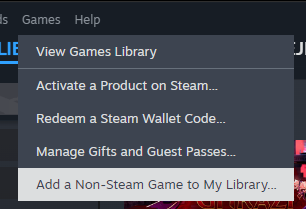
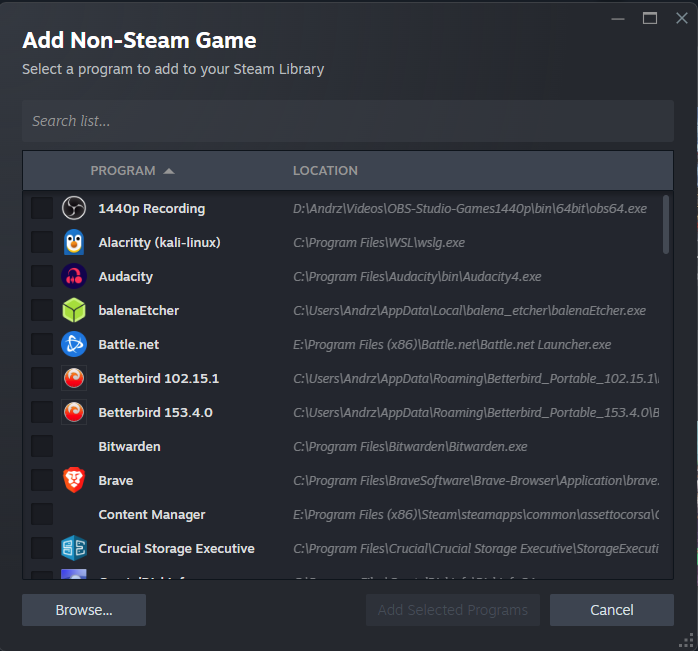
Open Steam, and from the menu choose Games, and then Add a Non-Steam Game to my Library…
Now click the Browse button in the bottom left of the newly opened window.
Now right click in the File name box and choose Paste from the dropdown menu.
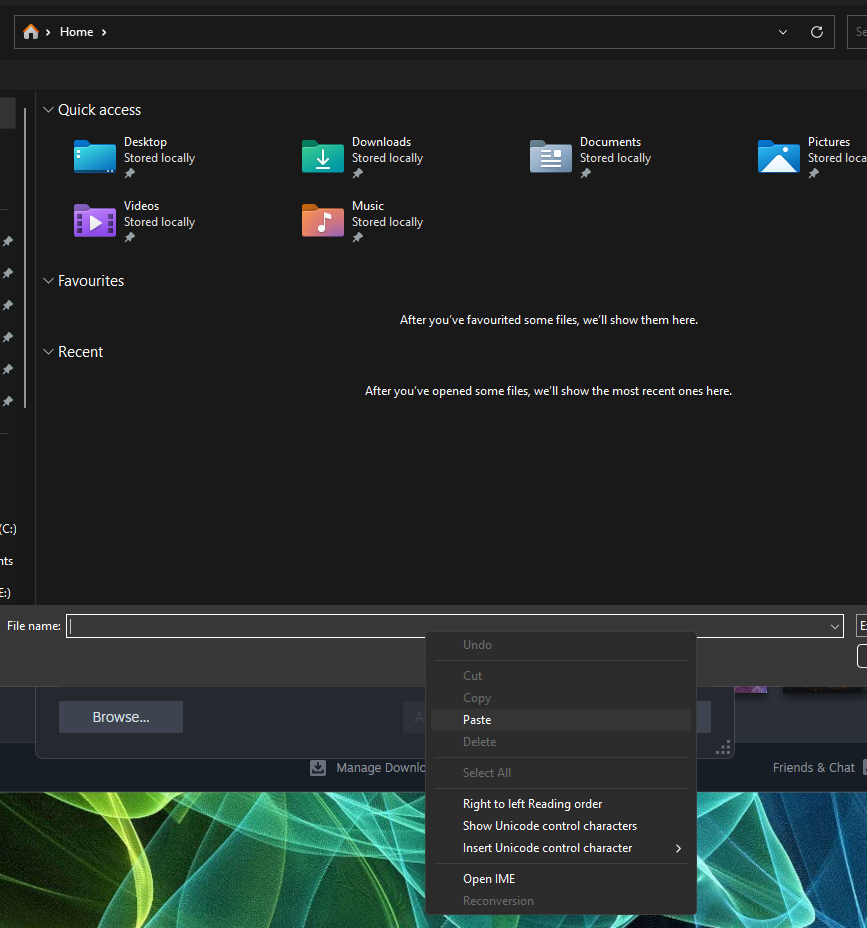
Path to your skse64_loader.exe should appear in the box. If it didn’t go back to the “Copy path” step and continue from there. If it did – click Open.

skse64_loader.exe should appear on the Add Non-Steam Game list and it should be ticked with a check mark ✓. You can now click the big blue Add Selected Programs button.
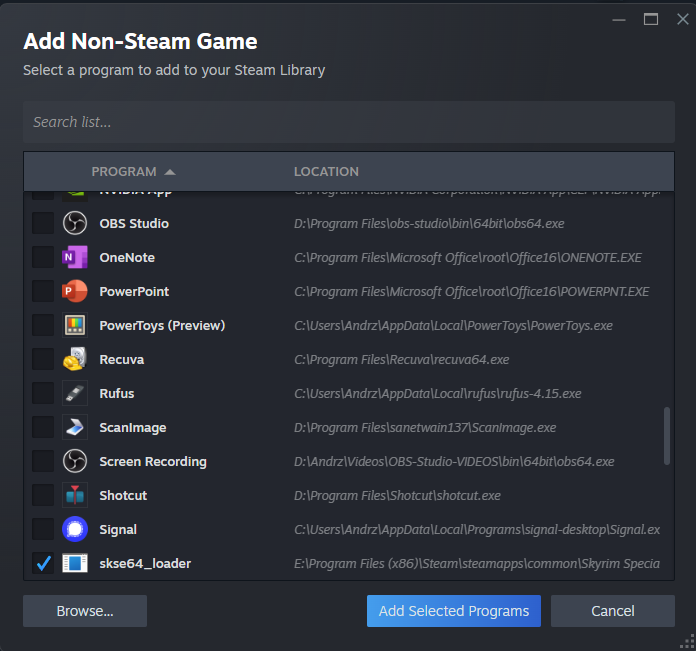
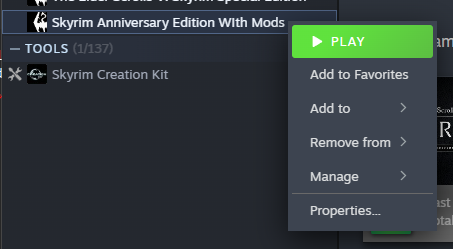
skse64_loader should now appear on your Games and Applications list in the Steam Library. Right click on it and choose Properties from the menu.
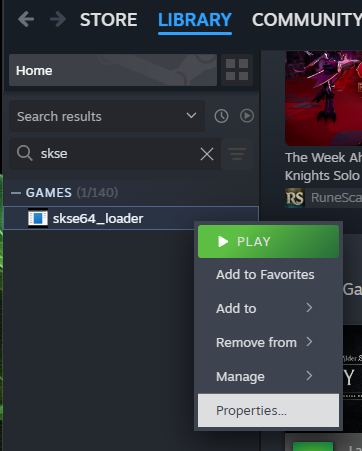
Here You can (but don’t have to) change the name and the icon for the loader.
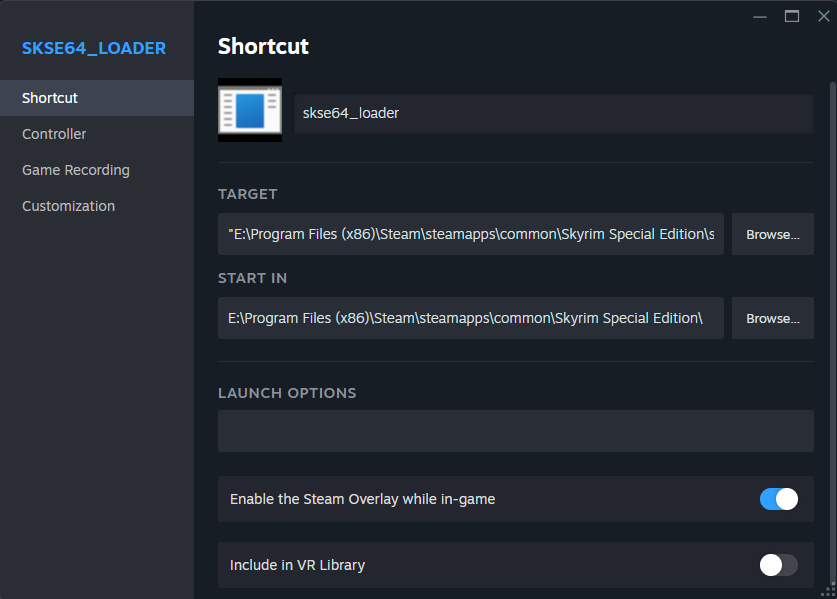
To change the name just type it into the skse64_loader box replacing the original text. I will call mine Skyrim Anniversary Edition With Mods.
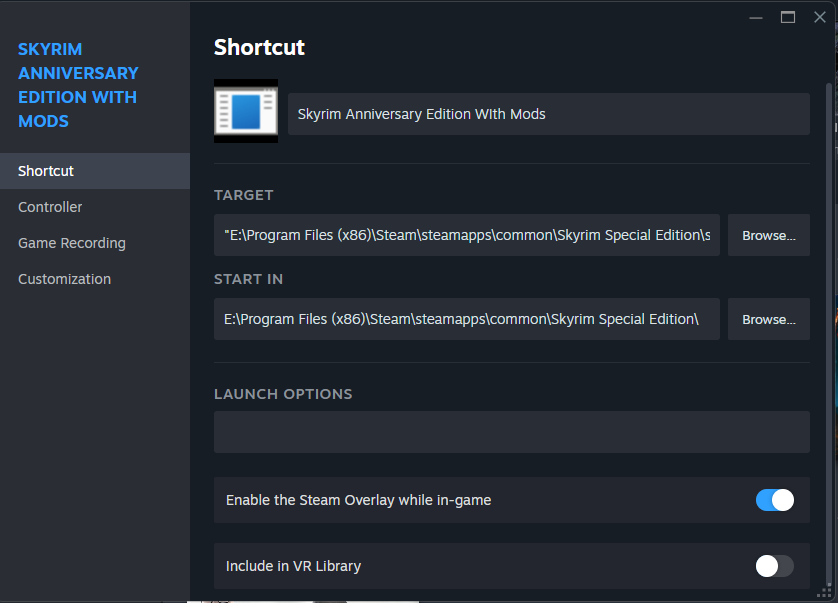
Now to change the icon (I will use the original vanilla game icon but you can download something from the interwebs or create something custom) click on the  icon and navigate to the .exe or image file that contains the icon. I will choose my vanila launcher executable stored in “E:\Program Files (x86)\Steam\steamapps\common\Skyrim Special Edition\SkyrimSELauncher.exe“
Yes, executable will work in this case as it contains the original icon.
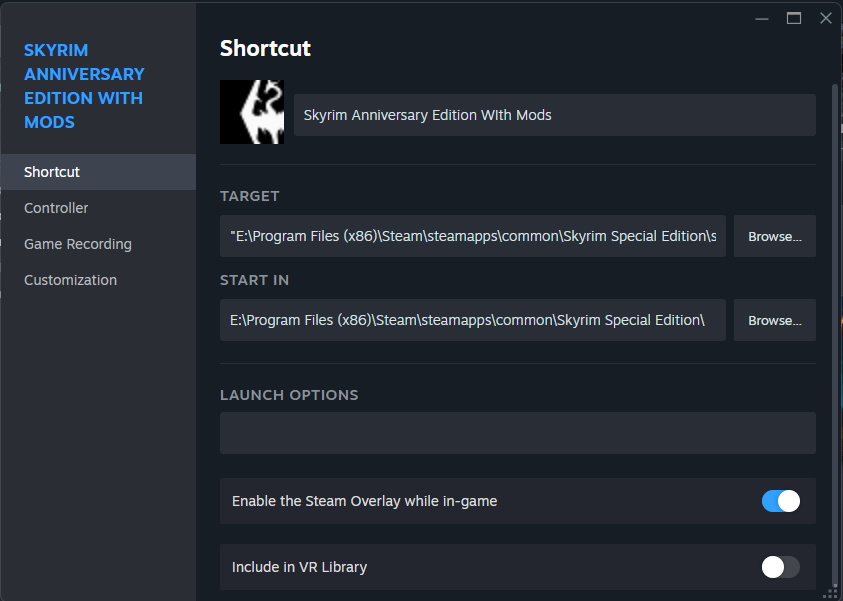
You can now close this window and you can see that the Skyrim Anniversary Edition With Mods is now present on your Games and Applications list in the Steam Library. Right click on it if you want to add a shortcut to the game on your desktop and choose Manage and then Add desktop shortcut. This step is optional of course.
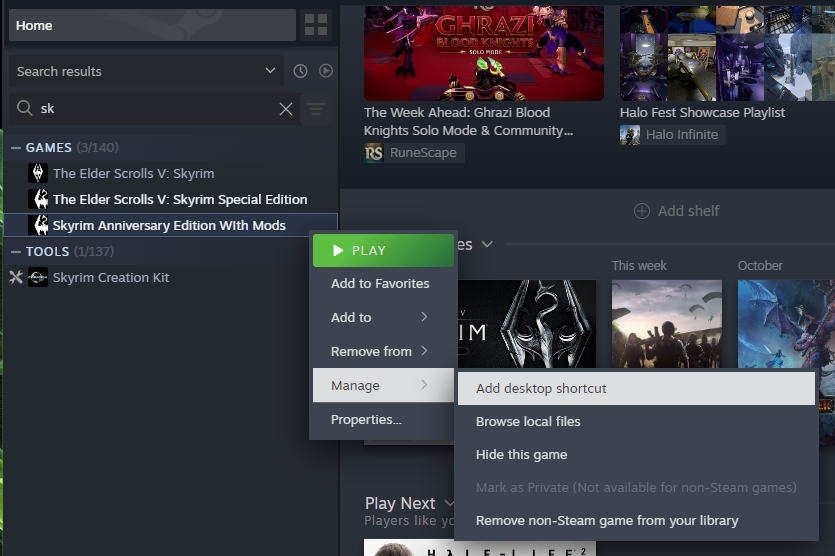
Some people like their game icons on their desktop… I guess nobody is perfect 😜!
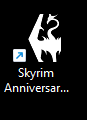
Lets start the game to see if everything is working as it should. Use whatever method you want. Just make sure you start the correct executable.
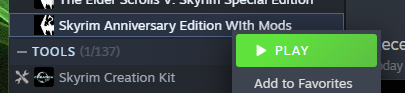
Still working as expected. That’s great. Lets close the game.
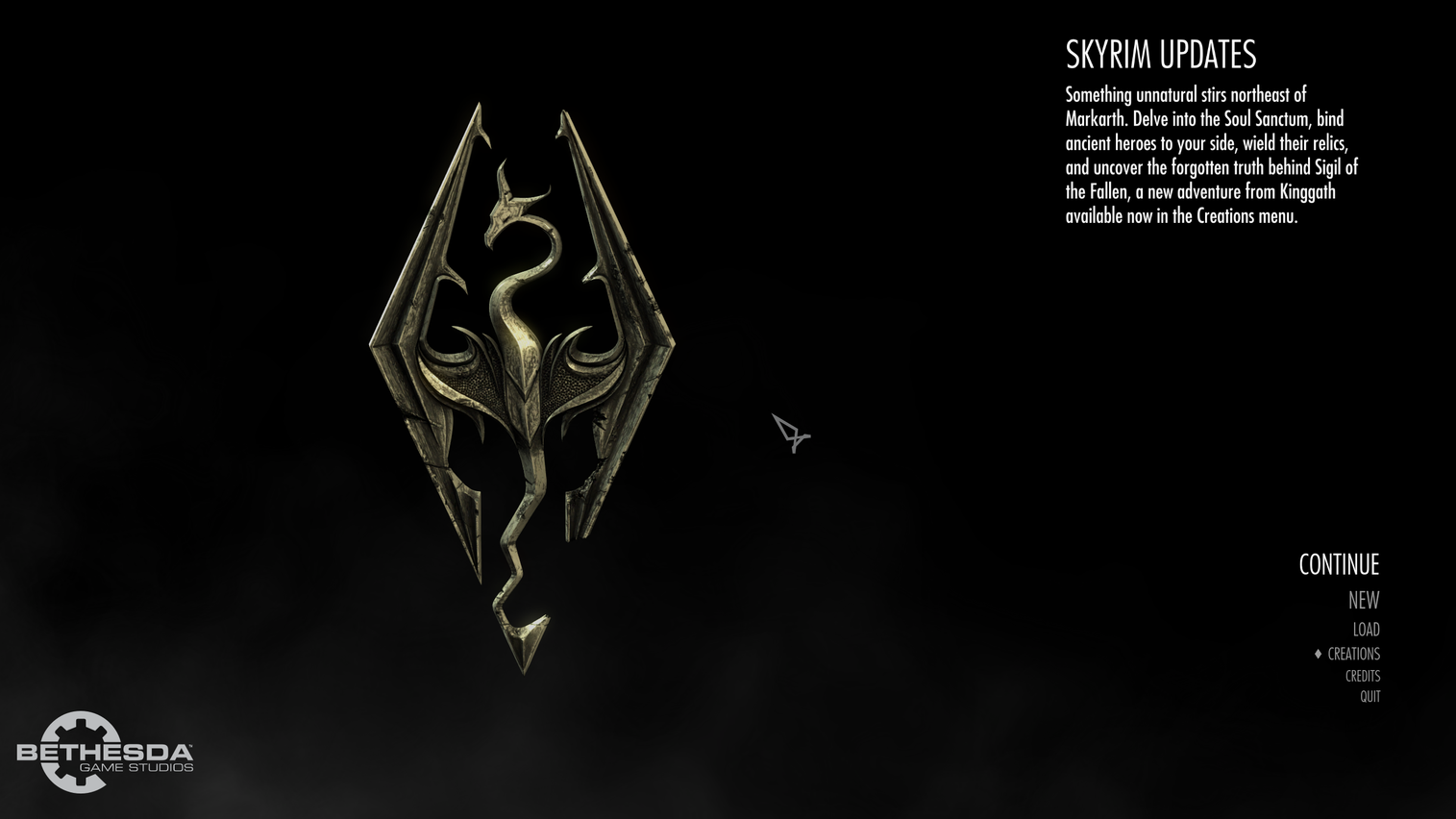
Now lets move on to downloading the SkyUI addon from https://www.nexusmods.com/skyrimspecialedition/mods/12604
At this stage you already have an account and you should be logged in so just click on the orange Manual button on the top right.

Click on Manual Download button.
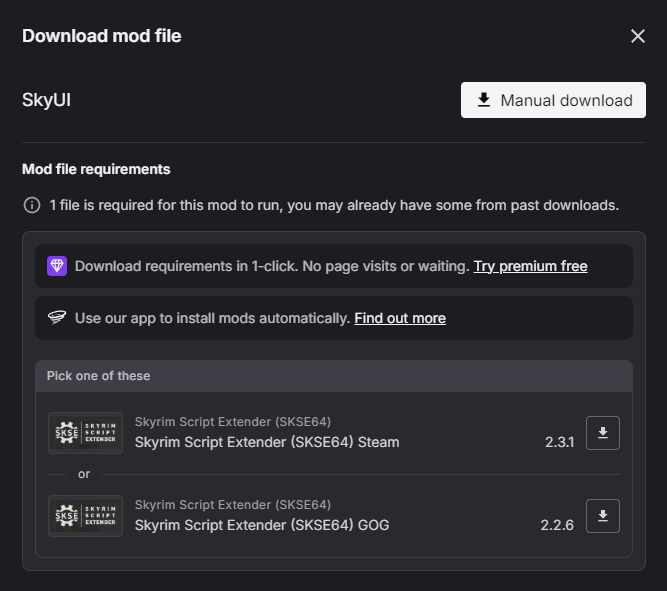
Click on Slow download button (again… because its free).
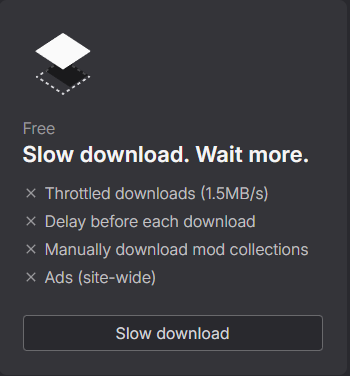
Few seconds later your download will start.

When its done, click on Open file link under the file name on your Downloads list.
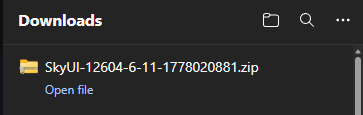
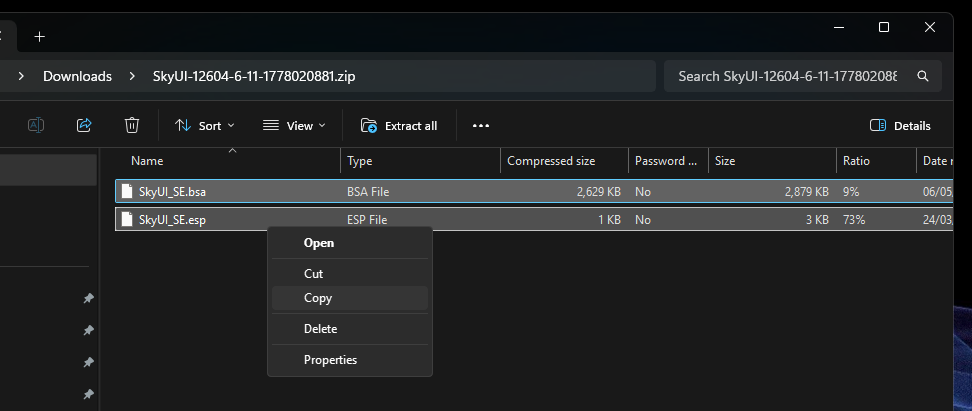
You should now see a window that contains two files, SkyUI_SE.bsa and SkyUI_SE.esp. Highlight both files and right click to copy them.
Now – go back to your game installation window we shoved aside for now. Can’t find it? Right click on the Skyrim Anniversary Edition With Mods on your Games and Applications list in the Steam Library and choose Manage and then Browse local files.
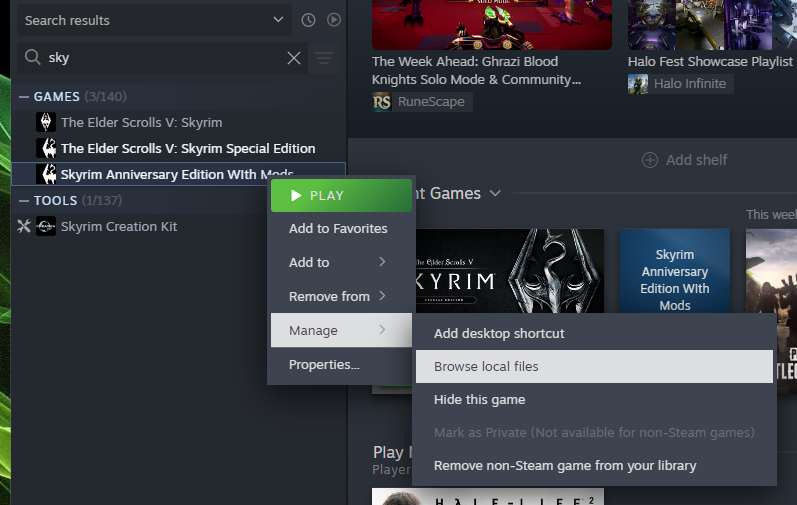
So you’re back in the game installation folder.
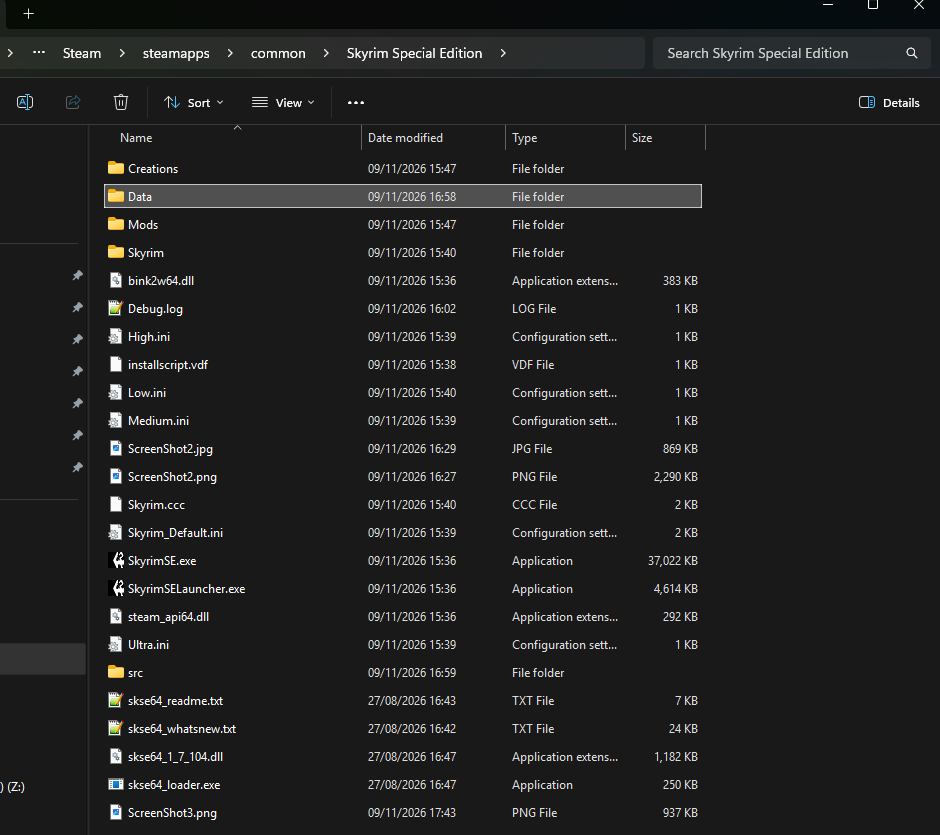
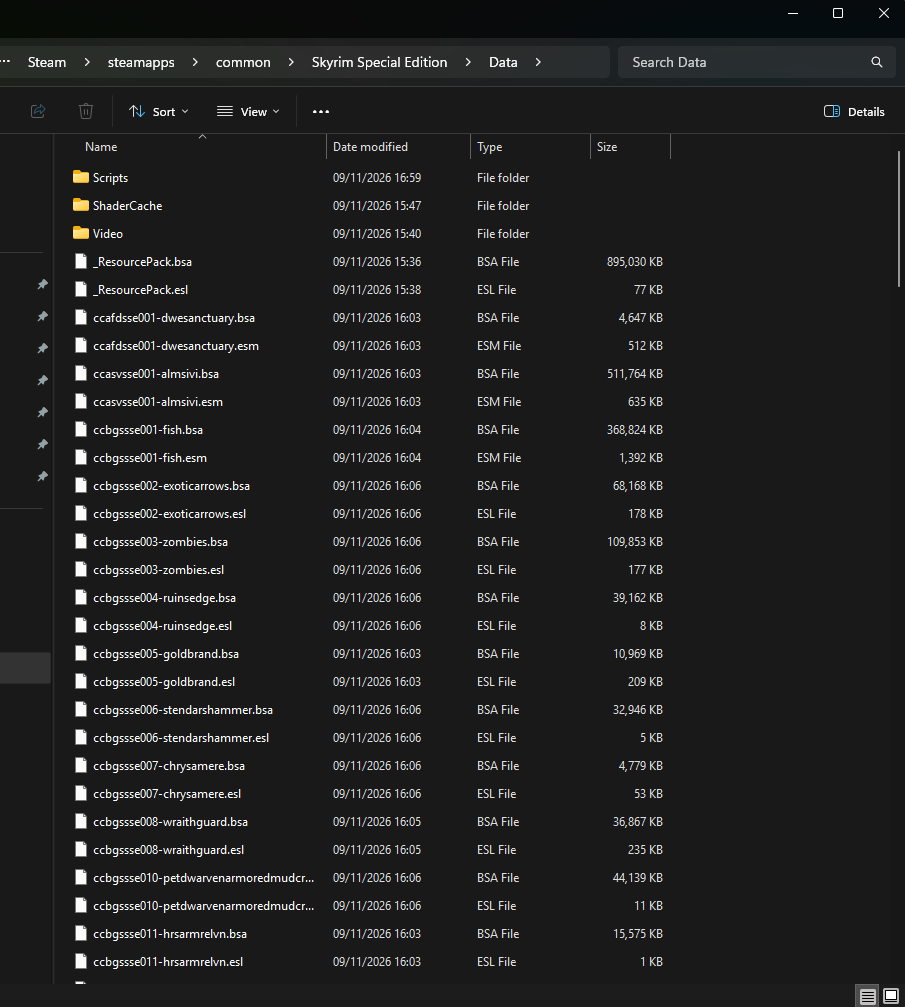
Find the Data folder and double click on it to open it.
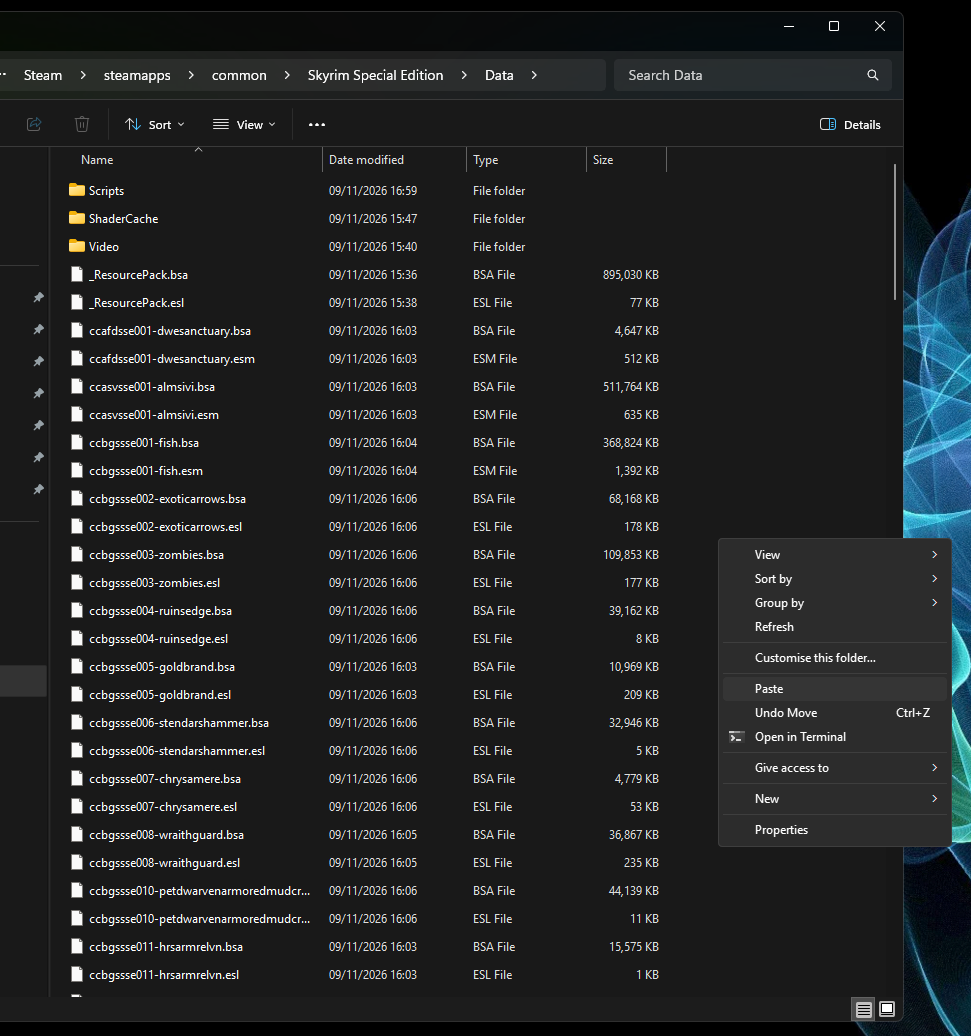
Now right click and Paste the 2 files you copied earlier.
They should now be present in the Data folder.

And now THE CRAZIEST but absolutely necessary step to make this whole thing work…
Click on Start Menu and type in note, click on Notepad to open it.
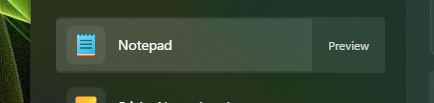
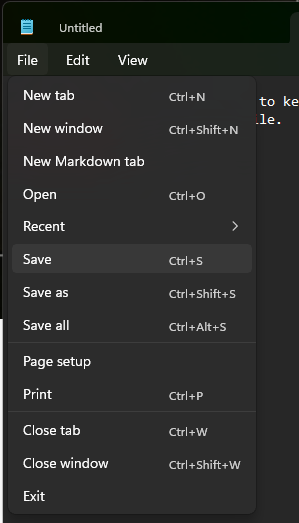
Now from the Notepad’s menu choose File and then Open
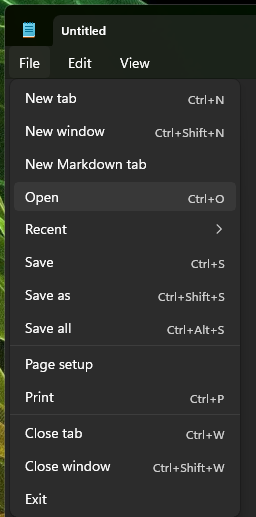
Paste this %LOCALAPPDATA%\Skyrim Special Edition\Plugins.txt in the File name box and click Open.
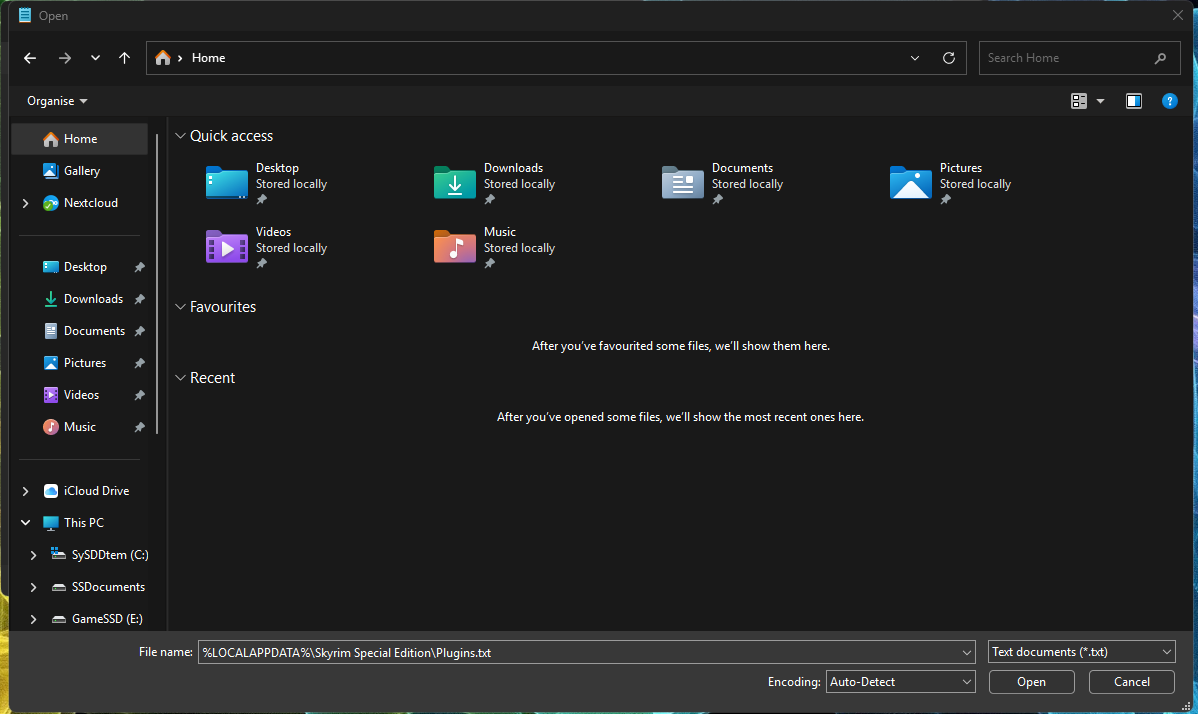
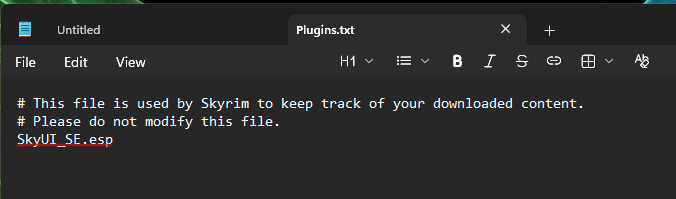
See the content of the file? See that very last line SkyUI_SE.esp?
Click right before that and add * so that it looks like this *SkyUI_SE.esp
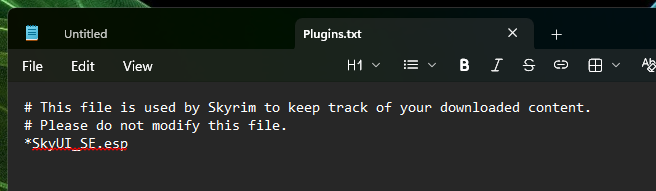
Now from the Menu choose File and then Save.
Close Notepad and start the game.
If you followed my guide to the letter and did everything correctly, you should now have the SkyUI inventory menu working in the game. IF not – go back and try figuring out what went wrong.
I hope this helps!
Thank you for your attention to this matter.
Catch you on the flip side,
AndrzejL