Hello beautiful peoples!
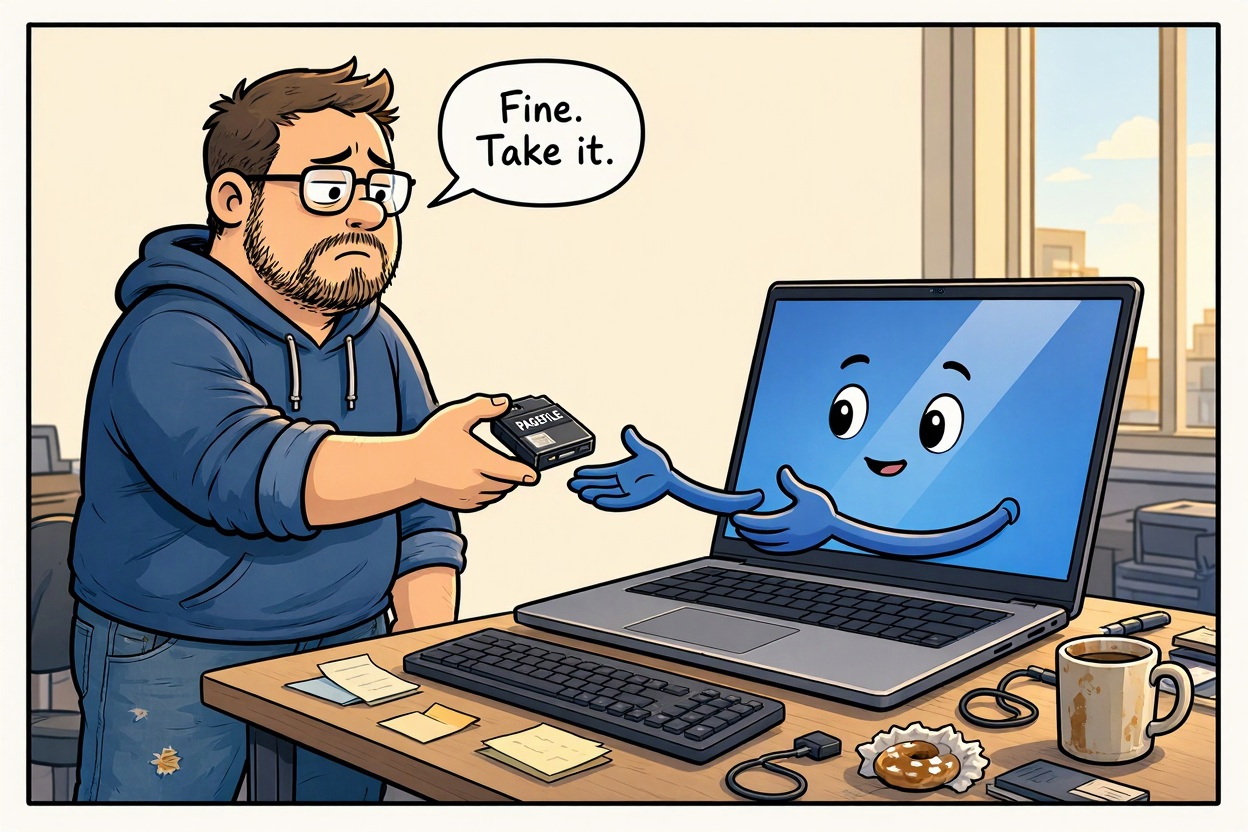
My PC has 32 GB of RAM. (Eat your heart out Sam!). Some applications were crashing, and Task Manager still showed plenty of memory available. Naturally, my first thought was not, “Perhaps Windows would like that pagefile back.” It probably should have been.
Here is the short version: Windows does not just track how much RAM applications are currently using. It also tracks memory it has promised to provide. That promise is called committed memory, or commit. There is a limit to how much Windows can promise. That limit is roughly your RAM plus your paging files. Without a pagefile, it is slightly less than your installed RAM. Reach that limit, and applications can fail to allocate memory, freeze, or crash. Having some RAM available does not automatically mean you have enough commit headroom.
In my case, Windows recorded two low virtual memory warnings, Event ID 2004, just before the application crashed. My commit limit was about 31.96 GB, and there was no active pagefile. Closing my mail client (which can be RAM heavy) allowed the application to start. That was a fairly strong hint.
What turning the pagefile back on actually fixes? The pagefile is a file on disk that Windows can use to back some committed memory and store memory pages moved out of RAM. Enabling it increases the amount of memory Windows can commit. Letting Windows manage its size also allows it to adjust as demand changes, provided there is enough disk space. Think of it as giving Windows more room to honour its promises, rather than telling applications, “Sorry, accounting says no.”
What does this fix do?
• It addresses a specific problem: running out of commit capacity.
What does this fix not do?
• It does not make an SSD as fast as RAM.
• It does not repair faulty memory or cure every crashing application.
This is intended for a personal Windows PC where you want Windows to manage the pagefile automatically. Do not run it blindly if:
• Your work computer is managed by an IT department. DO NOT PISS OFF YOUR SYSADMIN.
• You deliberately use a particular pagefile location or size.
• A server, specialist application, or crash-dump setup depends on the existing configuration.
• Your system drive is running short of space.
• The crashes have no evidence connecting them to memory pressure.
The setting below enables automatic management globally. It does not explicitly pin a particular pagefile size or location. Microsoft documents AutomaticManagedPagefile=True as allowing the system to manage the pagefile. The 20 GB free-space check is a precaution chosen for this example, not a Microsoft requirement or a guarantee that 20 GB will suit every workload. Pagefile requirements depend on memory demand and crash-dump settings.
One more caveat: automatic growth is not magic. Microsoft documents cases where rapid memory allocation can outpace pagefile growth. If allocation errors continue after enabling it, investigate further rather than assuming the problem is solved forever.
Enable automatic pagefile management:
Open Windows PowerShell as Administrator by right-clicking the Start button and selecting Terminal (Admin).
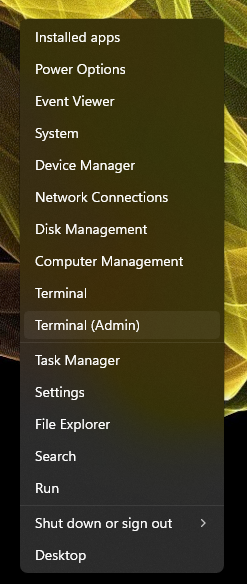
Copy the first command block below, then right-click inside PowerShell to paste it and press Enter. Save your work and restart the PC using the normal Windows Restart option. This interrupts running applications and any active WSL workloads, so finish or safely stop anything important first. The script itself does not change WSL configuration. UPDATE: I have added error handling around the original commands so a failed disk check or registry backup stops the configuration change.
What Stage 1 does, in normal human language? First, it checks that PowerShell has administrator permissions and that C: has at least 20 GB free. If either check fails, it stops without changing the pagefile configuration. Then it creates a backup directory and exports the Memory Management registry key before changing the setting. On this Windows machine, the backup location is C:\root\backup, with a timestamp in the filename. That export is a record of the original registry settings, not a full system backup. Do not blindly import the whole key later if other memory settings have changed in the meantime. Next, it enables automatic pagefile management and prints the result. You want to see True under AutomaticManagedPagefile. That confirms the configuration setting has changed. The post-restart checks confirm whether the pagefile is active. No WSL shutdown command. No application uninstalling. No random “RAM optimiser” invited into the house.
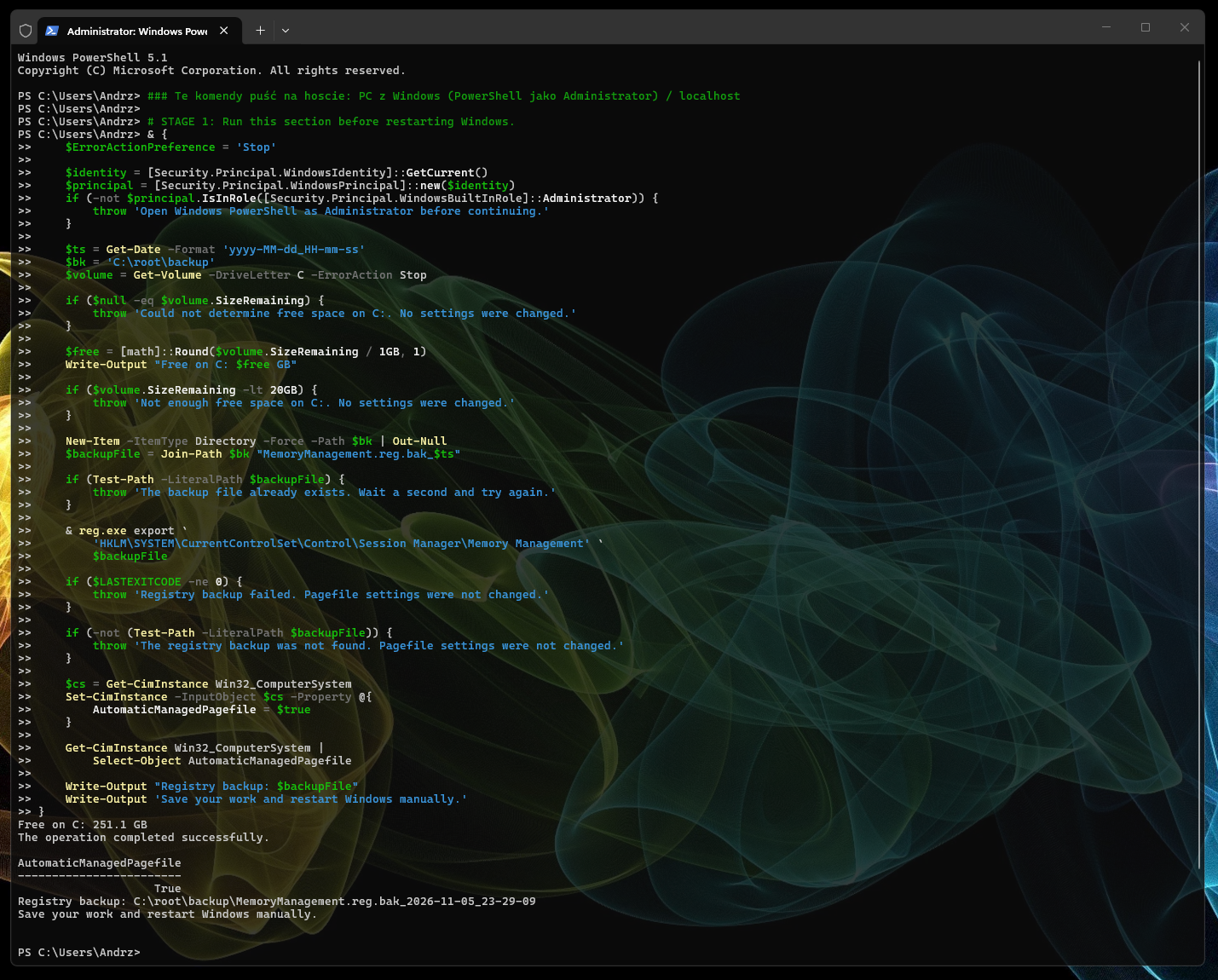
### Run this command on Windows PC (PowerShell as Administrator) / localhost

# STAGE 1: Run this section before restarting Windows.
& {
    $ErrorActionPreference = 'Stop'

    $identity = [Security.Principal.WindowsIdentity]::GetCurrent()
    $principal = [Security.Principal.WindowsPrincipal]::new($identity)
    if (-not $principal.IsInRole([Security.Principal.WindowsBuiltInRole]::Administrator)) {
        throw 'Open Windows PowerShell as Administrator before continuing.'
    }

    $ts = Get-Date -Format 'yyyy-MM-dd_HH-mm-ss'
    $bk = 'C:\root\backup'
    $volume = Get-Volume -DriveLetter C -ErrorAction Stop

    if ($null -eq $volume.SizeRemaining) {
        throw 'Could not determine free space on C:. No settings were changed.'
    }

    $free = [math]::Round($volume.SizeRemaining / 1GB, 1)
    Write-Output "Free on C: $free GB"

    if ($volume.SizeRemaining -lt 20GB) {
        throw 'Not enough free space on C:. No settings were changed.'
    }

    New-Item -ItemType Directory -Force -Path $bk | Out-Null
    $backupFile = Join-Path $bk "MemoryManagement.reg.bak_$ts"

    if (Test-Path -LiteralPath $backupFile) {
        throw 'The backup file already exists. Wait a second and try again.'
    }

    & reg.exe export `
        'HKLM\SYSTEM\CurrentControlSet\Control\Session Manager\Memory Management' `
        $backupFile

    if ($LASTEXITCODE -ne 0) {
        throw 'Registry backup failed. Pagefile settings were not changed.'
    }

    if (-not (Test-Path -LiteralPath $backupFile)) {
        throw 'The registry backup was not found. Pagefile settings were not changed.'
    }

    $cs = Get-CimInstance Win32_ComputerSystem
    Set-CimInstance -InputObject $cs -Property @{
        AutomaticManagedPagefile = $true
    }

    Get-CimInstance Win32_ComputerSystem |
        Select-Object AutomaticManagedPagefile

    Write-Output "Registry backup: $backupFile"
    Write-Output 'Save your work and restart Windows manually.'
}
After restarting Windows, open PowerShell again and run only Stage 2 command block.
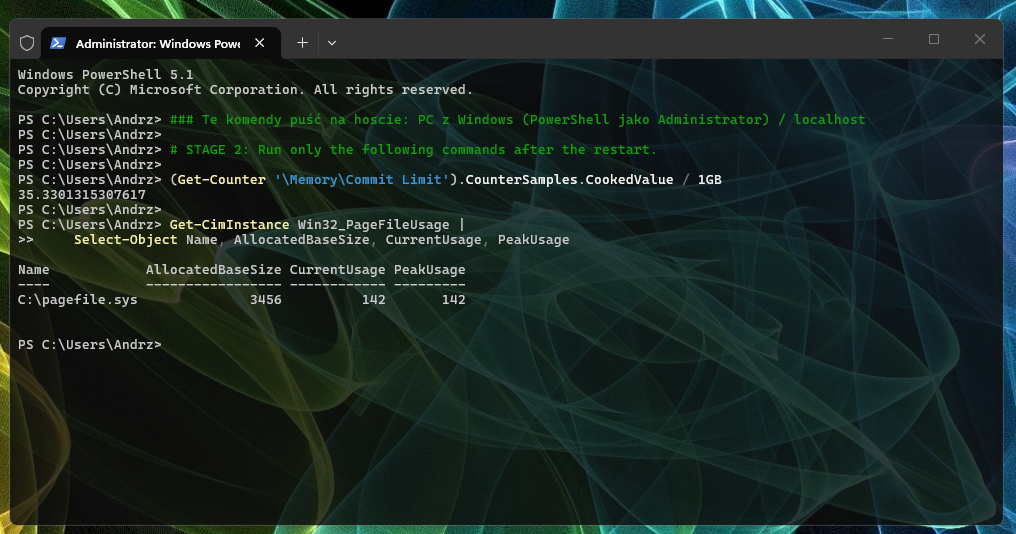
### Run this command on Windows PC (PowerShell as Administrator) / localhost

# STAGE 2: Run only the following commands after the restart.

(Get-Counter '\Memory\Commit Limit').CounterSamples.CookedValue / 1GB

Get-CimInstance Win32_PageFileUsage |
    Select-Object Name, AllocatedBaseSize, CurrentUsage, PeakUsage
What to look for after the restart? The first command shows your current commit limit in GiB. This is the memory commitment ceiling we wanted to raise, not the amount of RAM currently being used. After restarting, my commit limit was approximately 35.33 GiB, up from around 31.96 GiB without a pagefile.
The second command shows the active pagefile and its usage:
• Name: the file’s location. Mine was C:\pagefile.sys.
• AllocatedBaseSize: the allocated pagefile size in MB. Mine was 3456 MB, roughly 3.38 GiB.
• CurrentUsage: how much pagefile space is currently in use. Mine was 142 MB.
• PeakUsage: the reported peak usage. Mine was also 142 MB.
In other words, Windows now had an active pagefile, a higher commit limit, and had already used a small amount of pagefile space. Your numbers do not need to match mine. What matters is that the pagefile query returns an active file and that the commit limit has increased compared with your no-pagefile baseline. That confirms the configuration is working. The next test is repeating the workload that previously crashed.
Test the workload that used to crash. Open the applications you normally use, then repeat the task that previously failed. In my case, the application subsequently ran alongside Thunderbird and Betterbird. Combined with the earlier low virtual memory warnings and the increased commit limit, that strongly supports commit exhaustion as the cause.
If the problem returns, check whether Windows reports another Event ID 2004 around the same time. If it does, investigate memory demand, pagefile growth, and available disk space. If it does not, the crash may have another cause.
Fine, take it… For now, Windows has its safety net back.
I hope this helps!
Catch you on the flip side,
AndrzejL