Hello beautiful peoples!

So here’s a fun one. My desktop would randomly lose audio. Not on every sleep, not on every wake, just… sometimes after waking up. I would come back to the PC, hit play on something, and get a magnificunt silence. A reboot always fixed it, which is the most annoying kind of bug there is – the “have you tried turning it off and then back on again” kind, so there’s never quite enough pain to force you to actually chase it down and yet its annoying as fuck…
Eventually I ran out of patience. Here’s what I was working with, and how deep the rabbit hole went.
The patient:
- Dell OptiPlex 7010 SFF – a business desktop that was already old when it was new
- Intel Core i7-3770 – 3rd gen. Old enough that Windows 11 flatly refuses to install on it without being convinced otherwise
- 32GB DDR3 RAM – just about enough memory to remember what I have forgotten
- MSI RTX 3050 Low Profile – bolted on for some GPU horsepower, mostly irrelevant to this story, but it made a great decoy
- Windows 11 Pro, latest version, running via the usual unsupported-CPU/TPM bypass, because apparently I hate myself
The investigation…
Theory #1: It’s the GPU. I was suspecting that Nvidia GPU enables the audio over HDMI / DisplayPort, and plays it via my screen speakers, so next time the sound broke – I turned up on the volume on the screen. Zip. Zero. Nada. Big bobkas. Sound is supposed to come out of the 3.5mm jack, not the GPU. Back to zero.
Theory #2: The driver is a fraud. When I was installing Windows on this machine few years back I have noticed that “High Definition Audio Device” works better then the actual Realtek driver. The generic driver worked great, while Realtek driver had issues with determining to which (front / back) port my headphones / speakers were plugged in to so I let the generic driver run the Realtek codec…
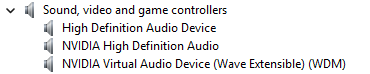
HDAUDIO\FUNC_01&VEN_10EC&DEV_0269&SUBSYS_10280577HDAUDIO\FUNC_01&VEN_10EC&DEV_0269&SUBSYS_10280577&REV_1001Funnily enough whenever it broke it would show no symptoms like a yellow triangle with exclamation marks in the Device Manager OR broken speaker in Windows system tray. The only symptom was the bloody silence… that DID NOT spoke volumes… and it definitely wasn’t gold… So whenever it broke I kept digging through logs observing the system until I got frustrated enough to reboot it so I can watch / listen to something…
The actual fix: disabling and re-enabling the Realtek codec device – no reboot, just a PnP toggle – brings the audio back, every time. Nothing ever logged an error, anywhere, the device just quietly stopped doing its job while insisting its status was perfectly fine. SO I have decided to give it the “Bishop Brennan” treatment… If you don’t understand – watch “Father Ted” series…

First attempt at automating that toggle taught me a valuable lesson: if you paste multi-line PowerShell into a console and the lines execute out of order, you can disable your audio device and never re-enable it. Don’t ask me how I know… OR do in the comments… The fix was wrapping the whole thing in try / finally, so the “turn it back on” step runs no matter what, even if the “turn it off” step throws an error. Did that sound smart? Great… Claude figured it out because I know absolutely fuck all about coding and scripts…
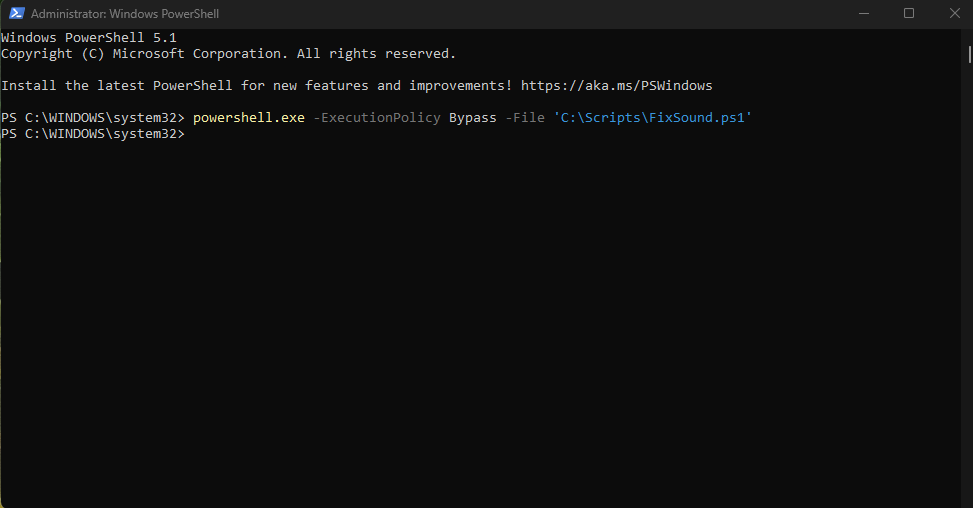
The fix: Save this as C:\Scripts\FixSound.ps1. Run it manually in the powershell as administrator (powershell.exe -ExecutionPolicy Bypass -File 'C:\Scripts\FixSound.ps1‘) any time the sound dies, or let the scheduled task below run it automatically.
#Requires -RunAsAdministrator
# Resets the Realtek audio codec (disable -> enable) after resume from sleep.
# try/finally: Enable ALWAYS runs, even if Disable fails or throws mid-way.
# RUN AS A FILE: & "C:\Scripts\FixSound.ps1"
# Never paste this line-by-line into an interactive console - order is not guaranteed.

$logFile = "C:\Scripts\FixSound.log"

function Write-Log {
    param([string]$Message)
    $ts = Get-Date -Format "yyyy-MM-dd HH:mm:ss"
    "$ts $Message" | Add-Content -Path $logFile
}

# Hardcoded to this machine's exact codec: VEN_10EC = Realtek (vendor), DEV_0269 = this specific
# codec model. On different hardware this simply won't match anything - see "will this fix
# your PC" below.
$device = Get-PnpDevice | Where-Object { $_.InstanceId -match "VEN_10EC&DEV_0269" } | Select-Object -First 1

if (-not $device) {
    Write-Log "ERROR - device VEN_10EC&DEV_0269 not found"
    exit 1
}

try {
    Disable-PnpDevice -InstanceId $device.InstanceId -Confirm:$false -ErrorAction Stop
    Write-Log "Disable OK - $($device.FriendlyName)"
    Start-Sleep -Seconds 3
}
catch {
    Write-Log "ERROR during Disable - $($_.Exception.Message)"
}
finally {
    try {
        Enable-PnpDevice -InstanceId $device.InstanceId -Confirm:$false -ErrorAction Stop
        Start-Sleep -Seconds 1
        $status = (Get-PnpDevice -InstanceId $device.InstanceId).Status
        Write-Log "Enable OK - status: $status"
        if ($status -ne "OK") {
            Write-Log "WARNING - status after Enable is not OK, possible pending reboot"
        }
    }
    catch {
        Write-Log "CRITICAL ERROR during Enable - $($_.Exception.Message)"
    }
}
You can then look into the log file C:\Scripts\FixSound.log where you can find entries like:
2026-07-12 10:55:00 Disable OK - High Definition Audio Device
2026-07-12 10:55:05 Enable OK - status: OK
2026-07-12 11:45:32 Disable OK - High Definition Audio Device
2026-07-12 11:45:41 Enable OK - status: OK
2026-07-12 11:46:27 Disable OK - High Definition Audio Device
2026-07-12 11:46:32 Enable OK - status: OK
2026-07-12 11:47:50 Disable OK - High Definition Audio Device
2026-07-12 11:47:56 Enable OK - status: OK
2026-07-12 11:54:57 Disable OK - High Definition Audio Device
2026-07-12 11:55:03 Enable OK - status: OK
2026-07-12 13:59:39 Disable OK - High Definition Audio Device
2026-07-12 13:59:46 Enable OK - status: OK
2026-07-12 14:48:48 Disable OK - High Definition Audio Device
2026-07-12 14:48:54 Enable OK - status: OK
2026-07-12 17:03:50 Disable OK - High Definition Audio Device
2026-07-12 17:03:55 Enable OK - status: OK
Making it automatic: This is a Scheduled Task, triggered by the exact Windows event that fires every time the system resumes from sleep (Microsoft-Windows-Power-Troubleshooter, Event ID 1) – not a polling loop, not a login trigger, the actual “just woke up” event. Save as FixSound.xml and import it via Task Scheduler → Import Task….
<?xml version="1.0" encoding="UTF-16"?>
<Task version="1.2" xmlns="http://schemas.microsoft.com/windows/2004/02/mit/task">
<RegistrationInfo>
<Date>2026-07-12T00:00:00</Date>
<Author>Local Author</Author>
<URI>\Custom\FixSound</URI>
</RegistrationInfo>
<Triggers>
<EventTrigger>
<Enabled>true</Enabled>
<Delay>PT5S</Delay>
<Subscription><QueryList><Query Id="0" Path="System"><Select Path="System">*[System[Provider[@Name='Microsoft-Windows-Power-Troubleshooter'] and EventID=1]]</Select></Query></QueryList></Subscription>
</EventTrigger>
</Triggers>
<Principals>
<Principal id="Author">
<UserId>S-1-5-18</UserId>
<RunLevel>HighestAvailable</RunLevel>
</Principal>
</Principals>
<Settings>
<MultipleInstancesPolicy>IgnoreNew</MultipleInstancesPolicy>
<DisallowStartIfOnBatteries>false</DisallowStartIfOnBatteries>
<StopIfGoingOnBatteries>true</StopIfGoingOnBatteries>
<AllowHardTerminate>true</AllowHardTerminate>
<StartWhenAvailable>false</StartWhenAvailable>
<RunOnlyIfNetworkAvailable>false</RunOnlyIfNetworkAvailable>
<IdleSettings>
<StopOnIdleEnd>true</StopOnIdleEnd>
<RestartOnIdle>false</RestartOnIdle>
</IdleSettings>
<AllowStartOnDemand>true</AllowStartOnDemand>
<Enabled>true</Enabled>
<Hidden>true</Hidden>
<RunOnlyIfIdle>false</RunOnlyIfIdle>
<WakeToRun>false</WakeToRun>
<ExecutionTimeLimit>PT1M</ExecutionTimeLimit>
<Priority>7</Priority>
<RestartOnFailure>
<Interval>PT1M</Interval>
<Count>3</Count>
</RestartOnFailure>
</Settings>
<Actions Context="Author">
<Exec>
<Command>powershell.exe</Command>
<Arguments>-ExecutionPolicy Bypass -File "C:\Scripts\FixSound.ps1"</Arguments>
</Exec>
</Actions>
</Task>At this stage of the investigation I almost soiled my pantaloons… after a nasty malware scare that turned out to be a storm in a tea cup…
The task runs as SYSTEM, not your own account – audio hardware isn’t tied to any particular user session, and this way it works even before you’ve logged back in.
Will this fix your PC?: Almost certainly not, and I’d rather tell you that upfront than let you copy-paste this and be confused when nothing happens.
The scheduled task itself is generic – “run something after the PC wakes from sleep” has nothing to do with audio and will work on any Windows machine. The script is a different story: it’s hardcoded to one exact piece of hardware, via VEN_10EC&DEV_0269 – Realtek, and specifically this Realtek codec model. On any other machine it will safely do nothing: no matching device, it logs “not found,” and exits. It won’t touch the wrong hardware, but it also won’t help you.
Why am I writing about it then?: Because I am afraid I will forget how I fixed it… At least now when that happens I can come back in here and re-read this…
Anyway… Even if you swap in your own device ID, there’s no guarantee it fixes anything, because this was never really an audio bug – it’s an old-hardware-meets-new-OS bug. The actual root cause is that this exact combination of ancient board and unsupported Windows version means there’s no proper vendor driver, just Windows’ generic fallback, which apparently doesn’t resume from sleep as gracefully as the real thing. If you’re on hardware Windows 11 actually supports, with a real manufacturer driver, you probably don’t have this specific problem at all – and if you have similar symptoms anyway, the cause is likely something else entirely (Modern Standby instead of old-school S3, a different driver conflict, take your pick), so the same fix won’t necessarily save you.
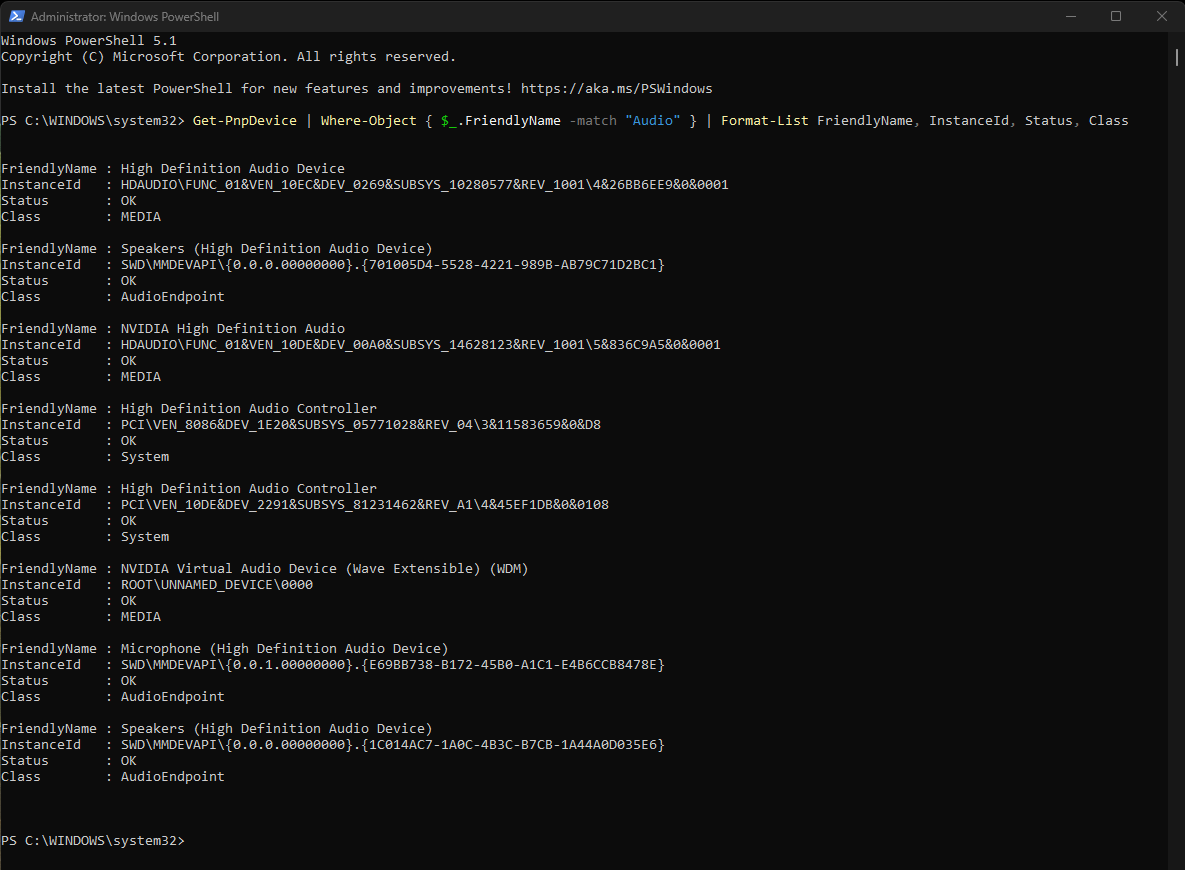
If you do want to adapt this: find your own device with Get-PnpDevice | Where-Object { $_.FriendlyName -match "Audio" } | Format-List FriendlyName, InstanceId, Status, Class, swap in your own VEN_XXXX&DEV_XXXX, and confirm you’re actually looking at the same silent-failure pattern before assuming disable / enable will save you too.
Anyway. It’s been quiet – the good kind of quiet – for a few days now. Sound is working. I’ll take it.
I hope this helps!
Catch you on the flip side,
AndrzejL