Hello beautiful peoples!

A Windows key, also called a Windows product key, is a 25-character code used to activate Windows. It usually looks something like this:
XXXXX-XXXXX-XXXXX-XXXXX-XXXXX
Activation is Microsoft’s way of checking that your copy of Windows is being used according to its licensing rules. During activation, Windows pairs the product key or digital licence with the hardware configuration of your computer. If the match is accepted, Windows is activated.
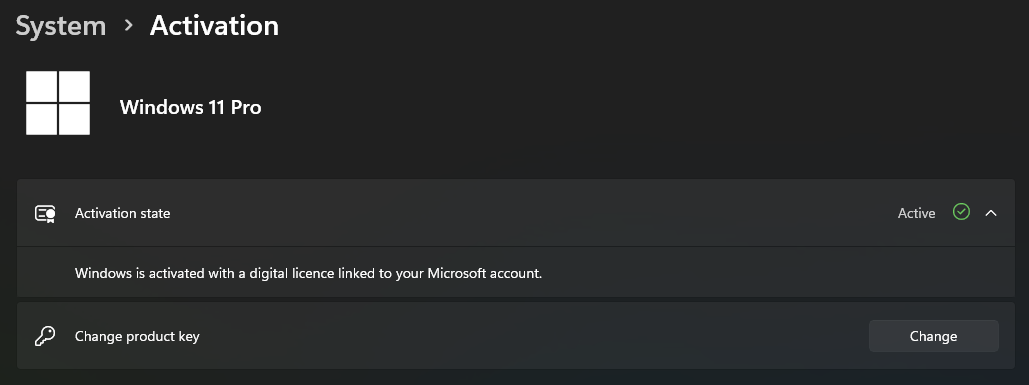
You can install Windows 11 without entering a product key and without activating it. The system will still install and work, but some personalisation and system options will be unavailable. You will also see the lovely reminder that Windows is not activated. So yes, you can use it, but it is not exactly the full experience.
If you buy a prebuilt PC, there is a very good chance that you also paid for an OEM Windows licence. OEM means Original Equipment Manufacturer. In simple terms, the PC manufacturer, such as Dell, HP, Lenovo or whoever built the machine, installed Windows on it and included a licence intended for that specific computer. An OEM Windows key should be used only with the hardware it was originally sold with. It is tied to that particular device. If the motherboard is replaced, the OEM licence may not reactivate automagically. Microsoft says that if the original equipment manufacturer replaced the motherboard, the PC should reactivate automagically, but that is not something I would treat as a guarantee.
A retail Windows key is different. You can buy it from Microsoft or an authorised seller, and you can generally use it on different hardware. The important part is that one retail key is meant for one computer at a time. It is not a magical family pack for ten PCs, unless you specifically bought a volume licence or another type of licence that allows that.
On newer computers with UEFI firmware, the Windows product key is often stored directly in the UEFI. During a clean Windows installation, the installer should detect that embedded key, contact Microsoft and activate Windows automagically. The keyword here is “SHOULD“.
That works nicely when the PC originally came with Windows preinstalled and the OEM key is stored in UEFI. But if you install Windows 11 on older hardware with legacy BIOS, there is no embedded Windows key waiting in the firmware. That method will not work.
And honestly, I think wiping your disk during a Windows reinstall and hoping that Windows will nicely talk to UEFI, find the key and activate itself is a bit of a gamble. It sounds like a recipe for a disaster and an unnecessary expense on a new Windows 11 key, which is not exactly cheap.
Imagine fixing a computer for a scatterbrained friend who originally had Windows installed by someone else, then tossed the licence key into a box at the back of the closet. They are hardly going to remember to hand it over to the next person who reinstalls Windows for them…
This is where ShowKeyPlus comes in. I assume it is safe and secure otherwise they would not allow it in the Microsoft Store… But hey, I did not write it and since it is closed source – I do not know what it does in the background… It may just as well be stealing your nekid pics in the background🤪. Never trust me or anyone on the internet. Check yourself. Or don’t use it. Be safe. I have been using it for over a year and none of my PCs exploded. Yet 😜…
ShowKeyPlus is a small application available in the Microsoft Store.
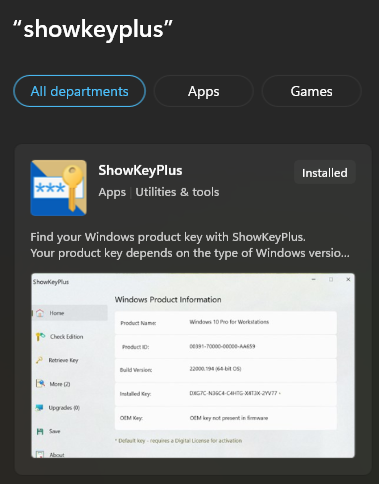
You can also install it using winget.
winget install --id 9PKVZCPRX9NV --exact --source msstore --silent --accept-package-agreements --accept-source-agreements --disable-interactivity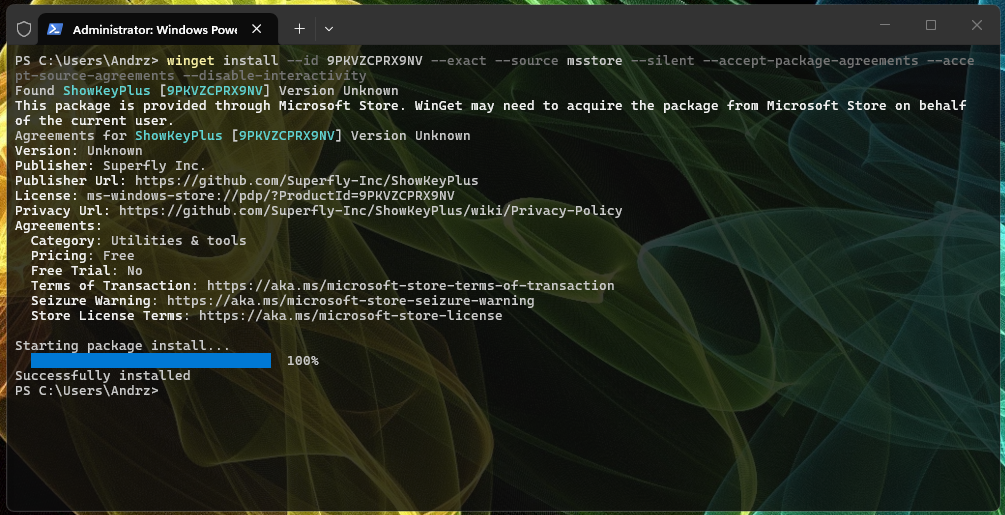

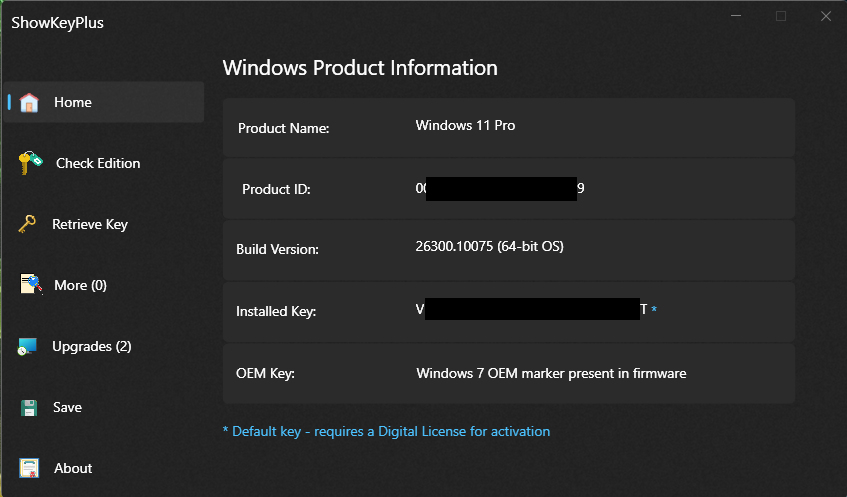
ShowKeyPlus can show information about the Windows key currently associated with your system. It can display the installed key, the Windows edition connected to it and additional licence-related details. On many modern prebuilt PCs, the key shown by the application comes from the firmware embedded in the motherboard.
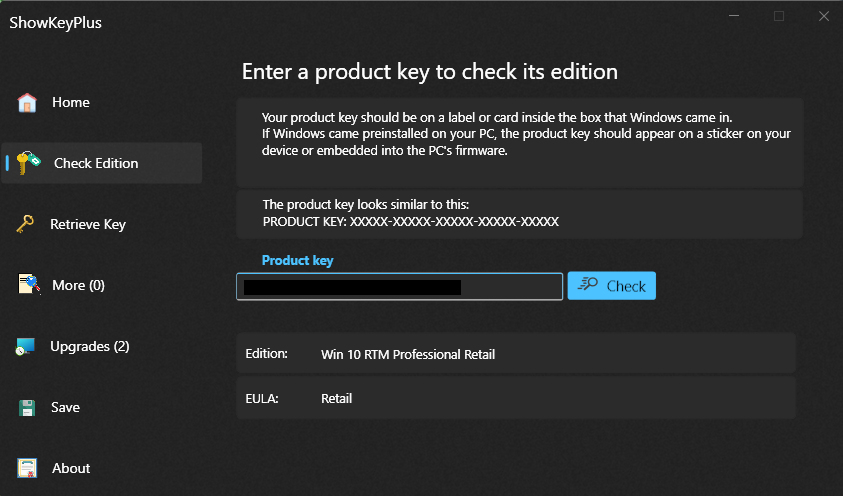
The application also lets you paste a Windows product key and check which edition it was created for. That is useful if you find an old key and you are not sure whether it is for Windows Home, Pro, Education or something else.
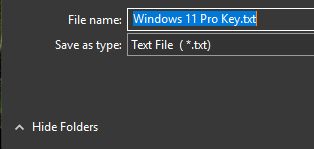
ShowKeyPlus can also save the displayed information to a .txt file, which is handy if you want to keep a copy of the details before reinstalling Windows.
One important warning: do not screenshot or share your full product key publicly. A product key is sensitive information. If you need to show someone a screenshot for support, cover or crop the key first.
ShowKeyPlus will not magically make an invalid, used or pirated key valid. But it can help you find the key already stored on your PC, check what edition it belongs to and save that information before you press the scary “Delete everything” button during a Windows reinstall.
I hope this helps!
Thank you for your attention to this matter.
Catch you on the flip side,
AndrzejL